
 Star
Star Documentation
Tools
Switch on the actions your AI can take — connect an integration, point it at your own API, or write the tool yourself.
Tools are the actions your assistant can take on your behalf — from built-in resource helpers to integrations like Gmail, Slack, and Google Calendar. The Tools page has three tabs: Functions (code you write), HTTP Endpoints (an API you already run), and Catalog (the integrations we ship). This page is about the last one — it’s where everyone starts.
Want the full picture? This is the quick version. The complete Tools guide documents every integration — Gmail, Outlook, Slack, calendars, web search, GitHub, Notion — plus your own HTTP endpoints and functions, tool by tool.
Built-in tools
Every project starts with five built-in tools already installed — List Resources, Read Resource, Send Resource, Search Resources, and List Prompts — so your assistant can work with your content right away. They sit in the catalog under Built-in and need no connection.
Browse the catalog
The Catalog lists every integration you can add — Gmail, Outlook, Slack, Google Calendar, Cal.com, Web Search, GitHub, Notion, and more. Each card shows how many of its tools you’ve enabled (Gmail alone offers 18).
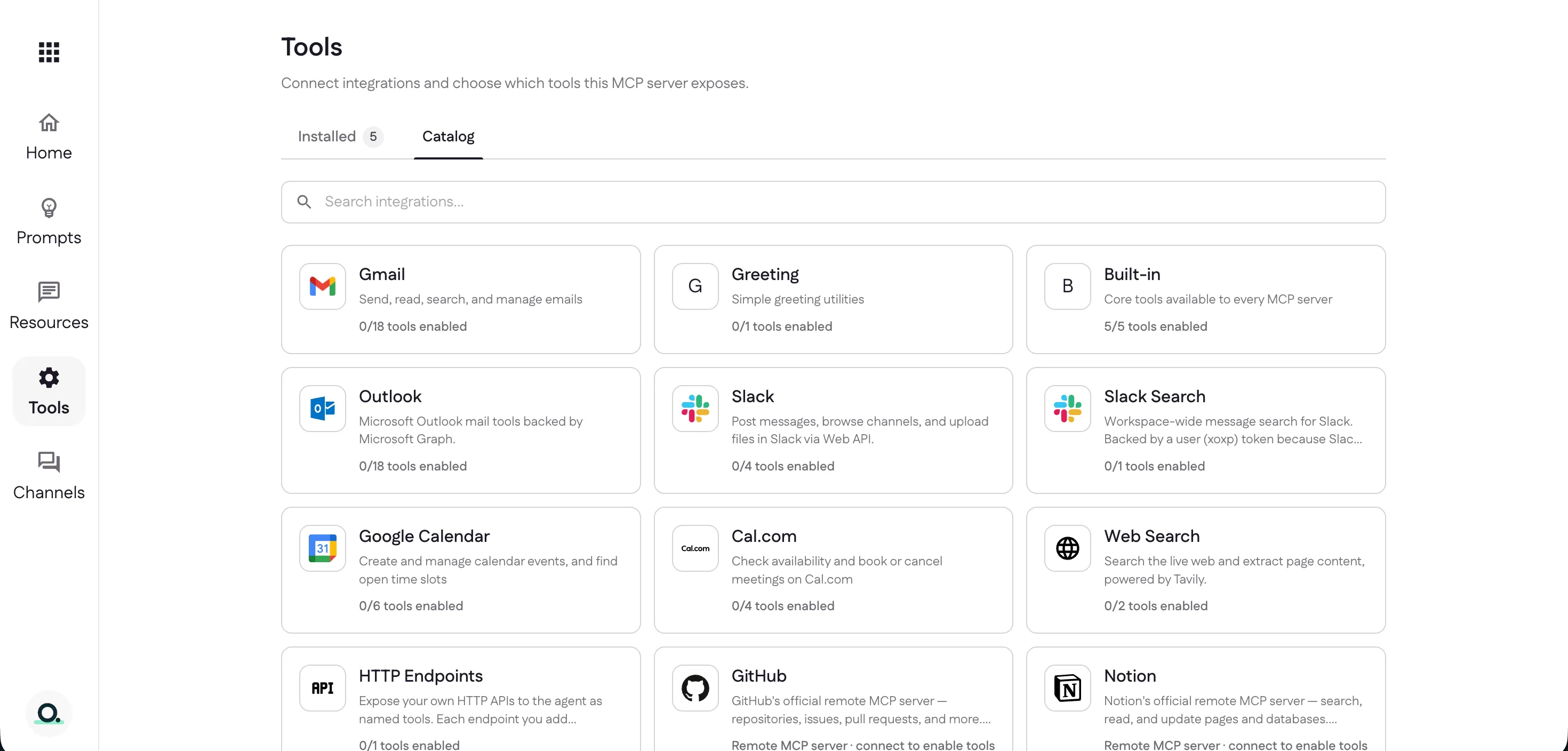
Connect an integration
Open an integration to see the tools it offers. Most need a one-time connection — select Connect Gmail (you only connect once for the whole integration), then turn on just the tools you want.
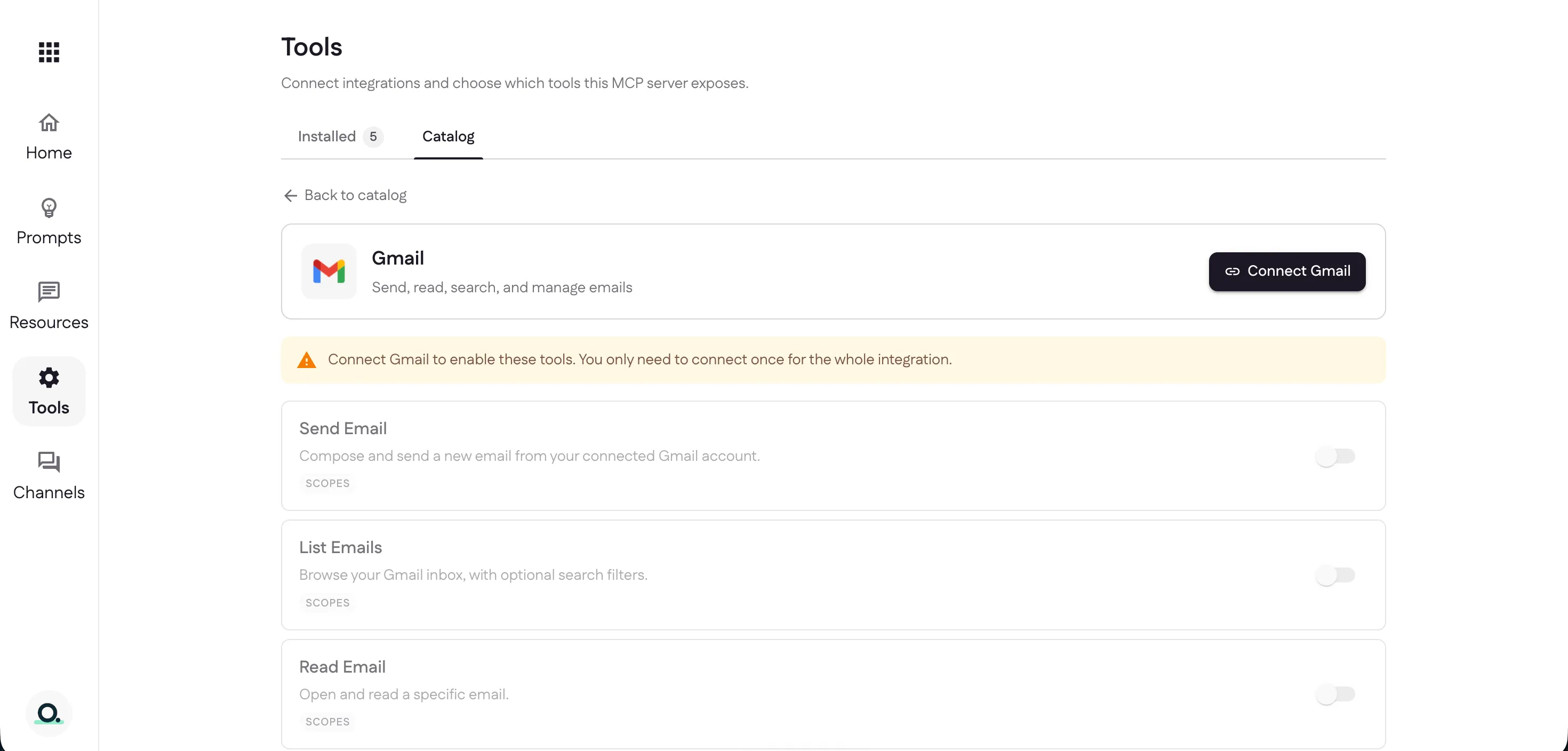
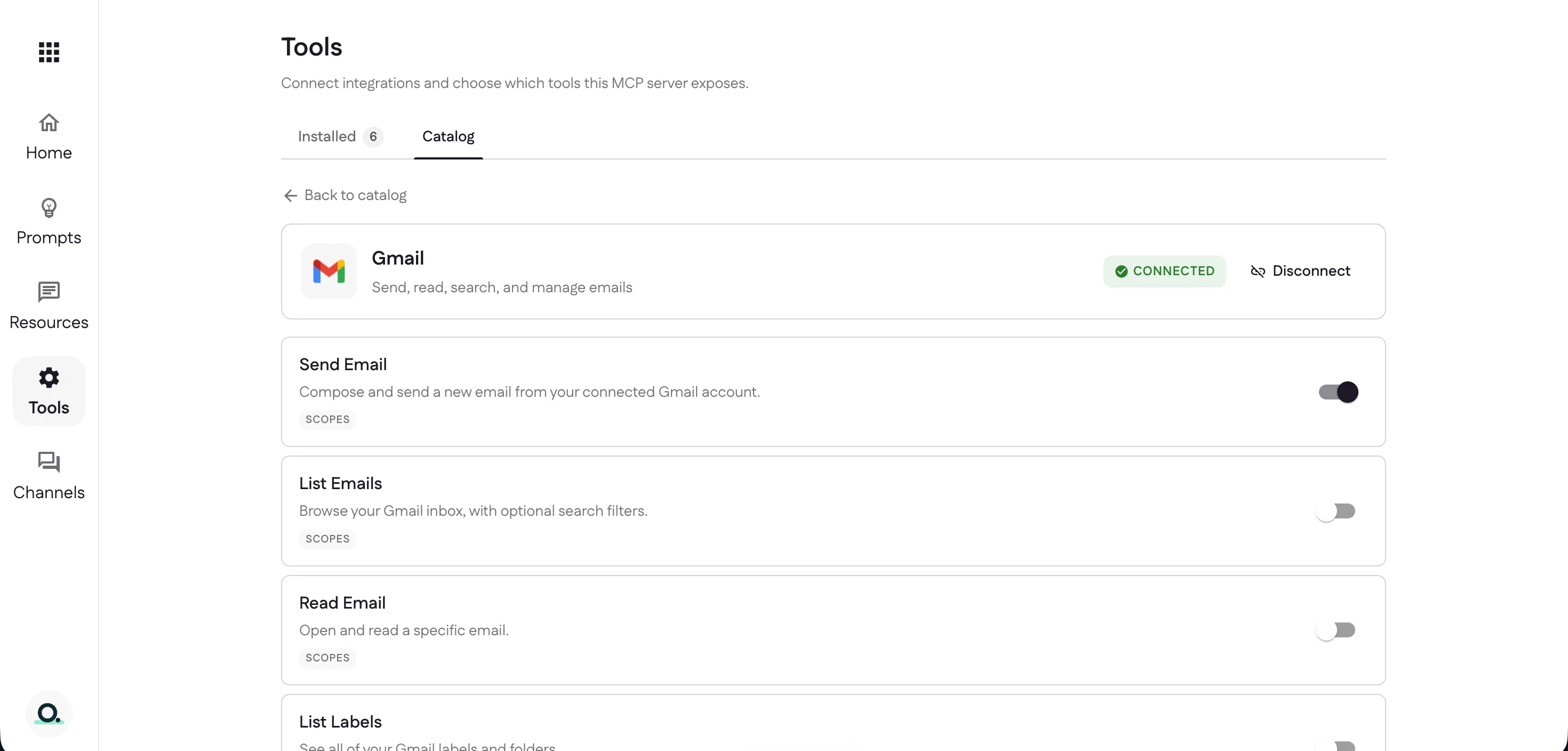
Once connected, flip on the individual tools you need — here, Send Email. Each tool you enable is exposed to your assistant straight away. The switch on a tool turns it off while keeping its setup; Disconnect removes the whole integration.
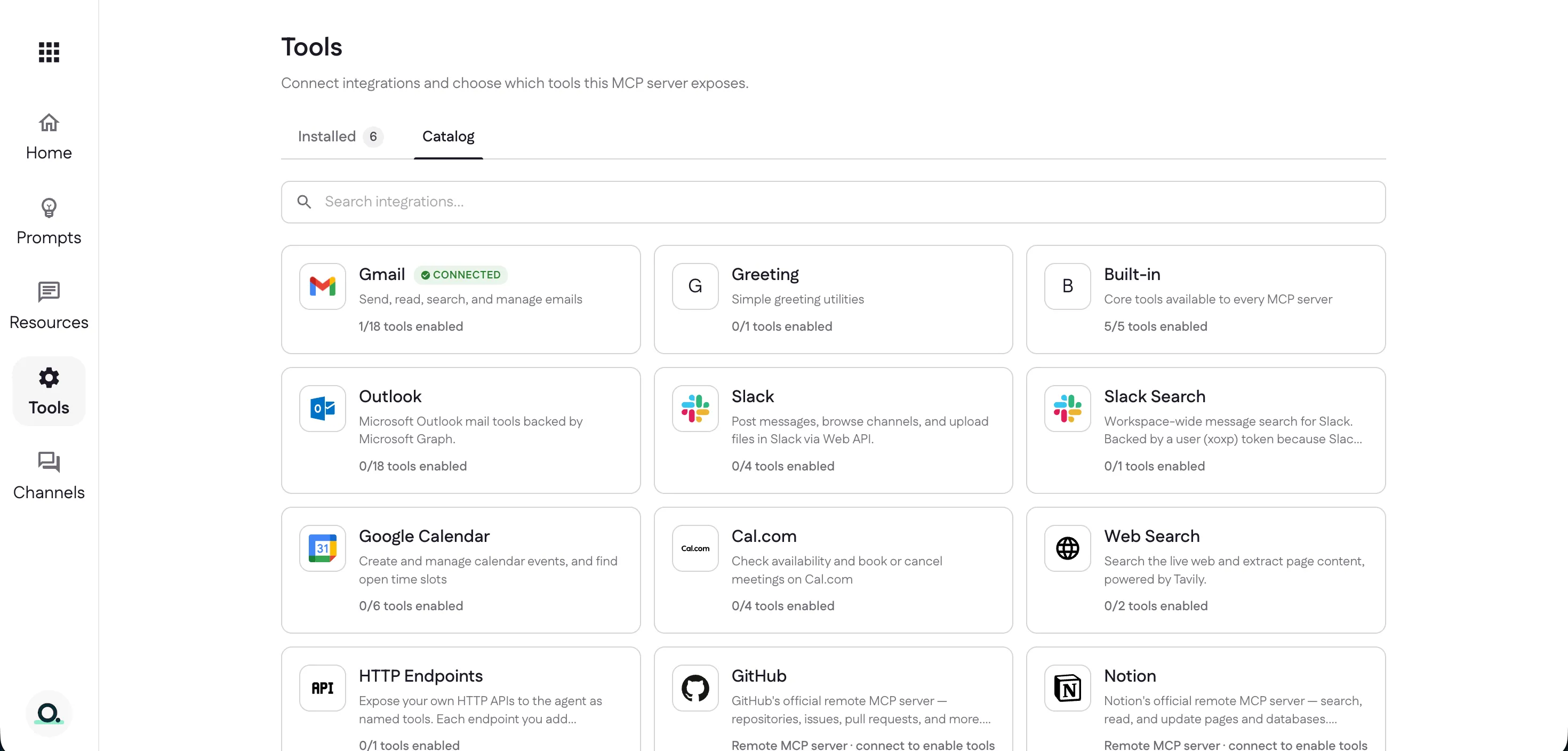
Back in the catalog, Gmail now shows Connected with your enabled count
(1/18).
Keep the list short
Turning a tool off stops it being exposed but keeps its configuration and its connection; Remove deletes it outright. Prefer the switch — every enabled tool’s schema is re-sent to the model on every call, so a long list costs tokens on every turn and makes the model’s choice harder.
When the catalog doesn’t cover it
Two escape hatches, on the other two tabs, in order of effort:
- HTTP Endpoints — describe one request against an API you already run and it becomes a named tool. No code, and it’s on every plan.
- Functions — write the tool yourself in JavaScript
when you need logic rather than a single call: several steps, a transform, or
combining a credential with a computation. Declare it, and the editor writes
the handler stub with
ctxfully typed; test it against real connections before anyone sees it, then deploy. Pro.
Prefer to work in a terminal? ganju CLI does the same
thing from a repository — ganju init, ganju login, ganju link,
ganju deploy — plus testing, logs, rollback, and deploying from CI.
Next: decide where people use it — set up channels.
Last updated