 Star
Star Documentation
Analytics
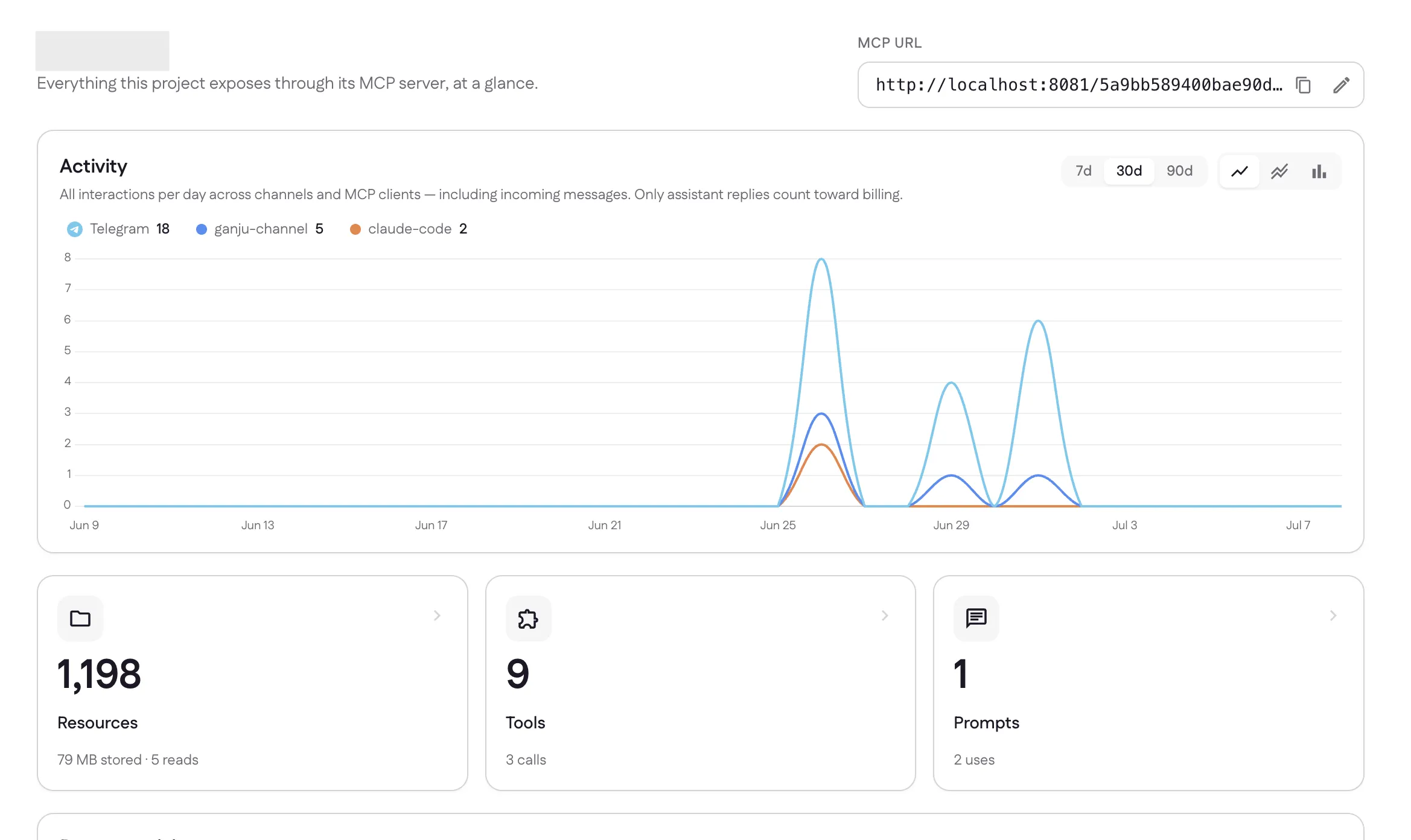
Every project's Home dashboard shows what your assistant is doing — activity over time across channels and MCP clients, usage of your resources, tools, and prompts, and a live recent-activity feed.
Every project opens on its Home dashboard — everything the project exposes through its MCP server, at a glance. It’s where you see how your assistant is actually being used: activity over time, what’s getting used, and who did what.
Why it matters
- See real usage, not guesses. Watch interactions per day and spot when your assistant is busy — or quiet.
- Know which channels and clients matter. Each channel and MCP client is its own line, so you can tell where your traffic comes from.
- Keep an eye on billing. The chart is clear about what counts: only assistant replies bill — incoming messages are free.
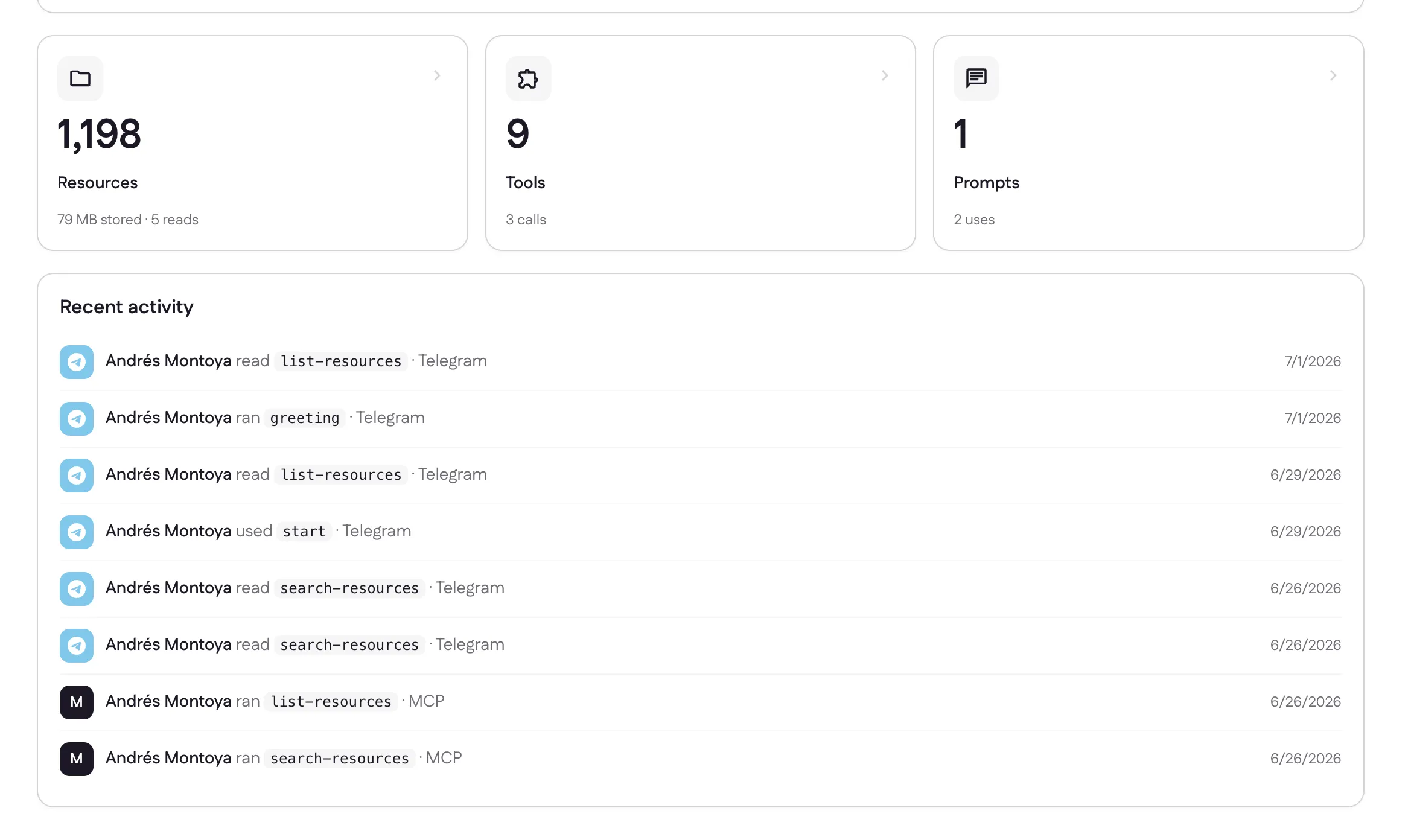
- Audit what happened. A recent-activity feed shows exactly which resource, tool, or prompt ran, from where, and when.
Activity over time
The Activity card charts all interactions per day — across every channel and MCP client, including incoming messages. Switch the range between 7, 30, and 90 days, and the view between Line, Area, and Bar. Each channel and each MCP client gets its own series in the legend (with its total for the range); click a legend entry to toggle that series on or off.
Only your assistant’s replies count toward billing — the incoming messages in this chart are free. See Settings → Billing & plan.
At a glance
Below the chart, three cards summarize what the project holds and how much it’s used — each links straight to that section:
- Resources — how many you have, total size stored, and how many reads.
- Tools — how many are installed and how many calls they’ve received.
- Prompts — how many you’ve defined and how many times they’ve run.
Recent activity
The Recent activity feed is a running log of individual events — who read a resource, ran a tool, or used a prompt, which source it came from (a channel like Telegram, or an MCP client), and the date. It’s the quickest way to confirm your assistant is doing what you expect.
The MCP URL for connecting clients also lives at the top of this page — see MCP clients for how to use it.
Last updated