 Star
Star Documentation
Resources
Add the files and knowledge your AI can search — from cloud drives, a website crawl, or direct uploads.
Resources are the documents and knowledge your assistant can search, so it answers from your content instead of guessing. Add them from Google Drive, OneDrive, a website crawl, or by uploading files directly — each one gets a URI and, once processed, is marked Ready.
Want the full picture? This is the quick version. The complete Resources guide covers Google Drive and OneDrive imports, website crawls, uploads, and citations.
Where resources come from
The Resources page groups everything by source: Google Drive, OneDrive, Websites, and folders you fill with your own uploads.
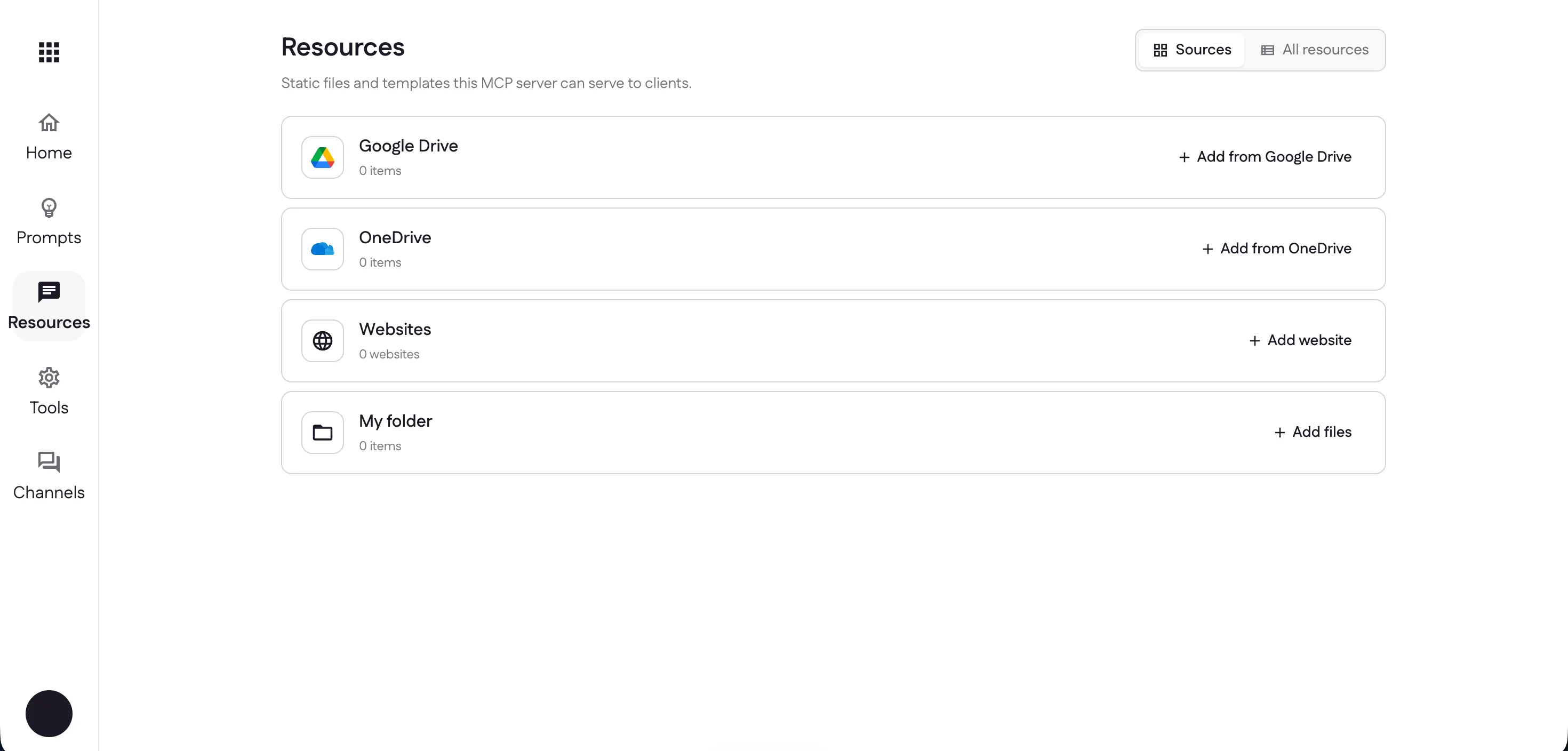
Import from Google Drive or OneDrive
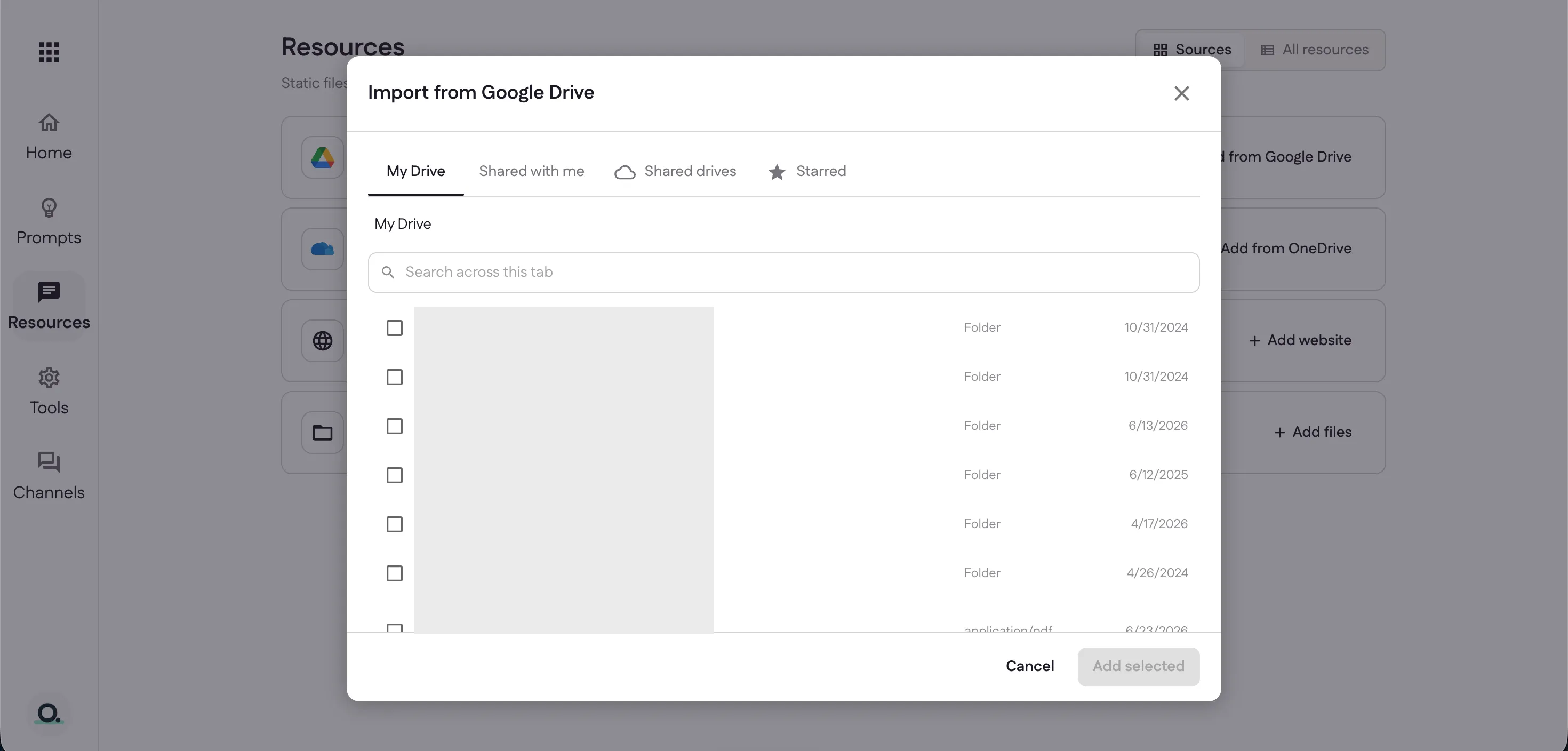
Choose Add from Google Drive to open the picker. Browse My Drive, Shared with me, Shared drives, or Starred, tick the files you want, and select Add selected.
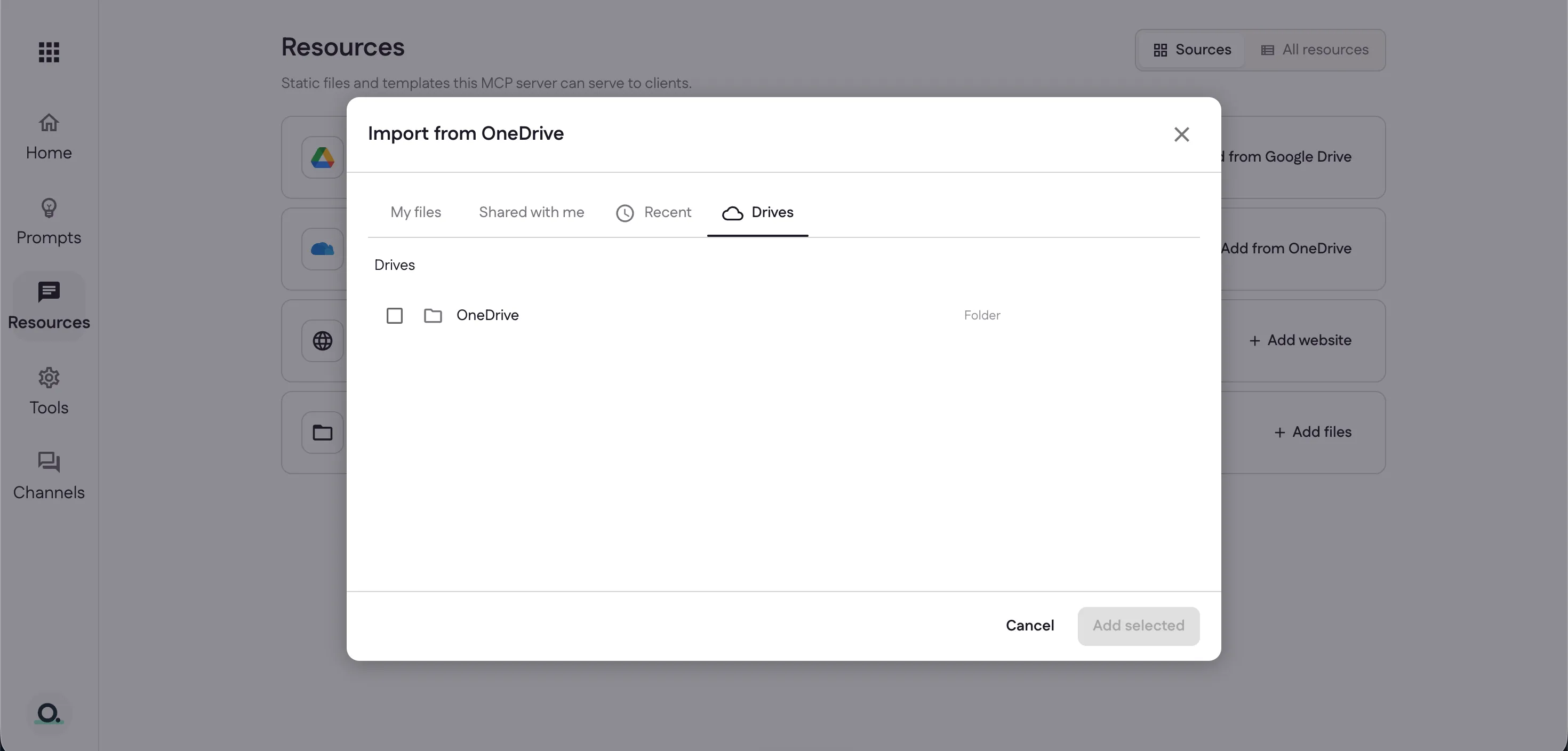
OneDrive works the same way — browse My files, Shared with me, Recent, or Drives, then add your selection.
Upload a file
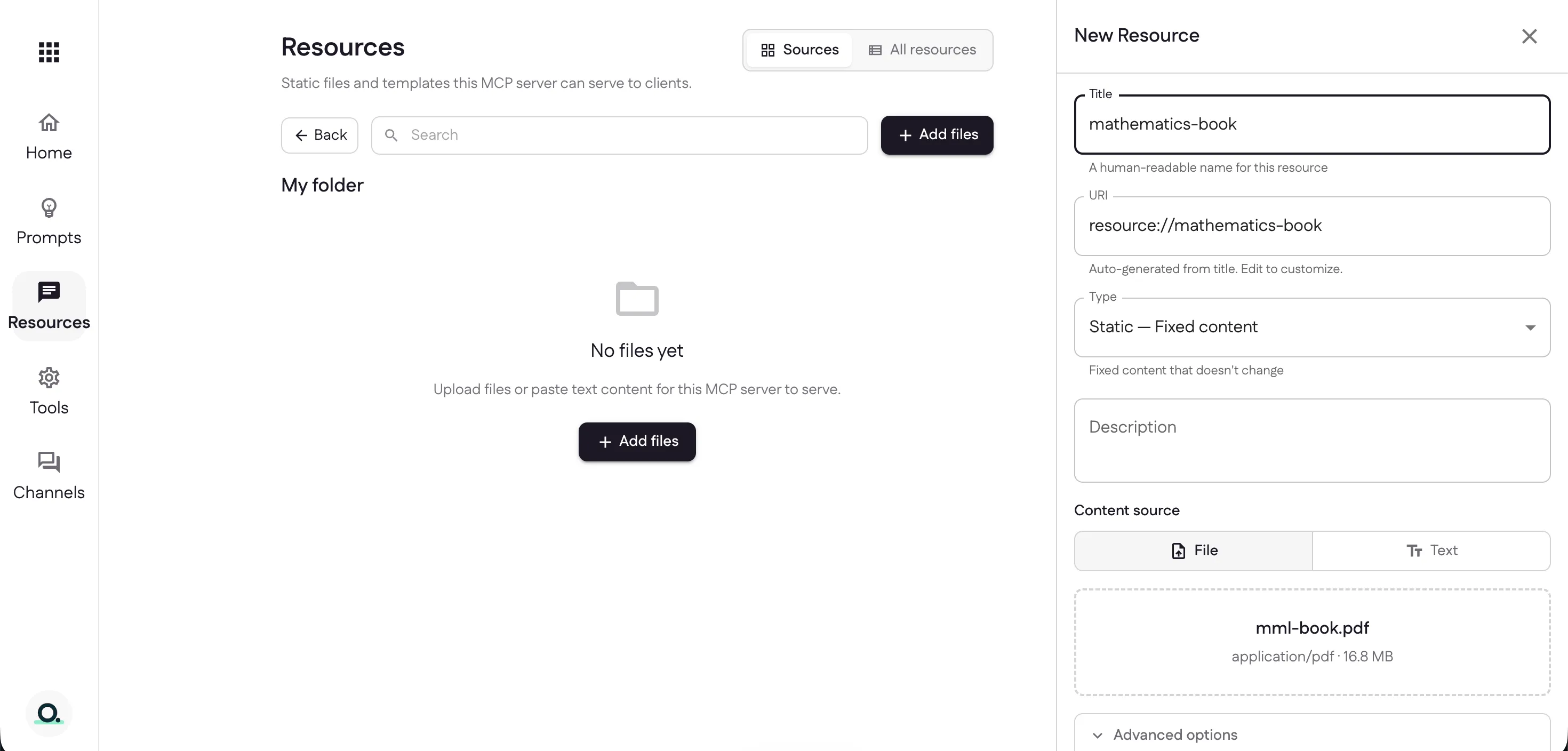
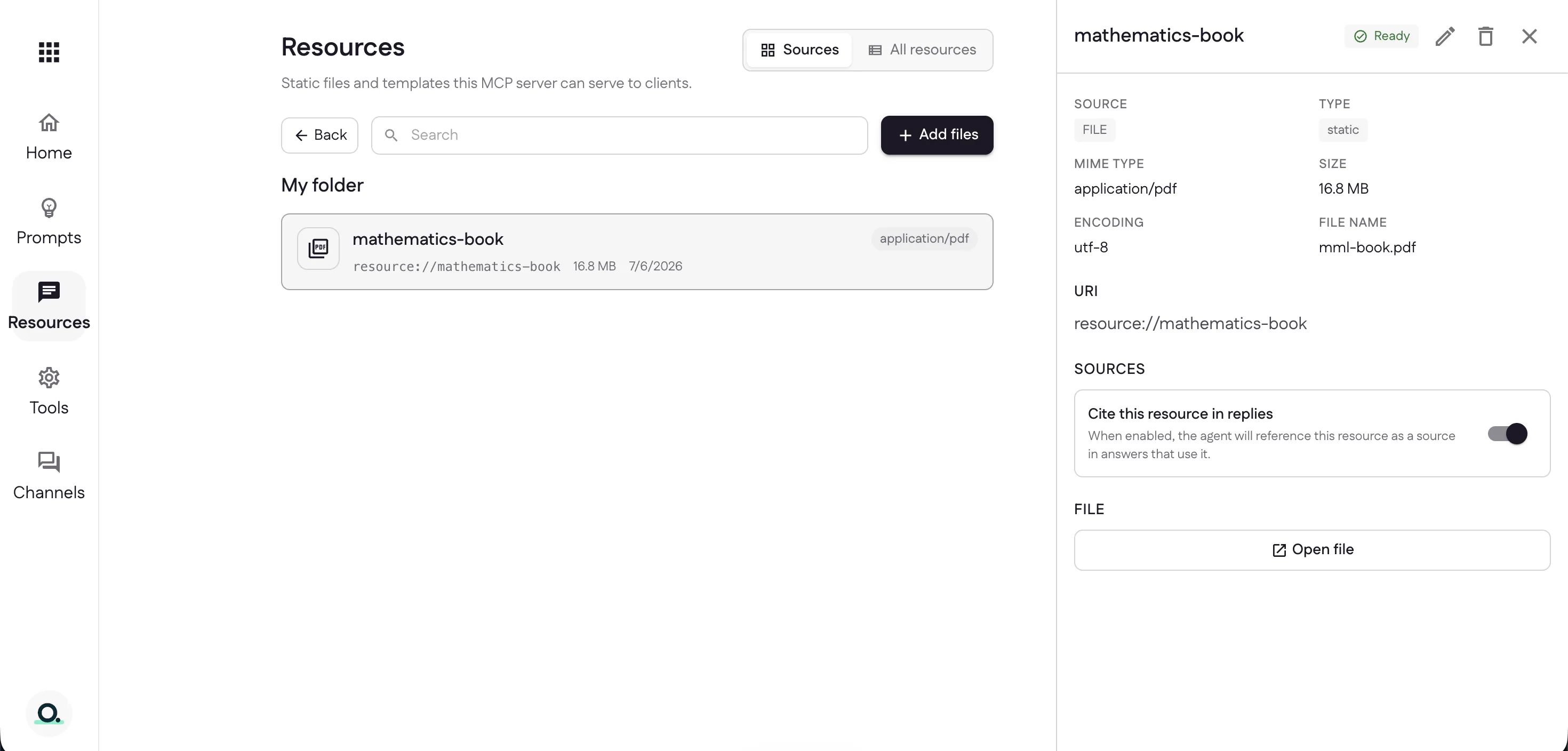
Inside a folder, select Add files. Give the resource a title — its URI is
generated for you (like resource://mathematics-book) and can be edited — pick a
type, and attach a file or paste text.
Once it’s processed the resource shows Ready, along with its type, size, and URI. Turn on Cite this resource in replies to have your assistant reference it as a source in answers that use it.
Crawl a website
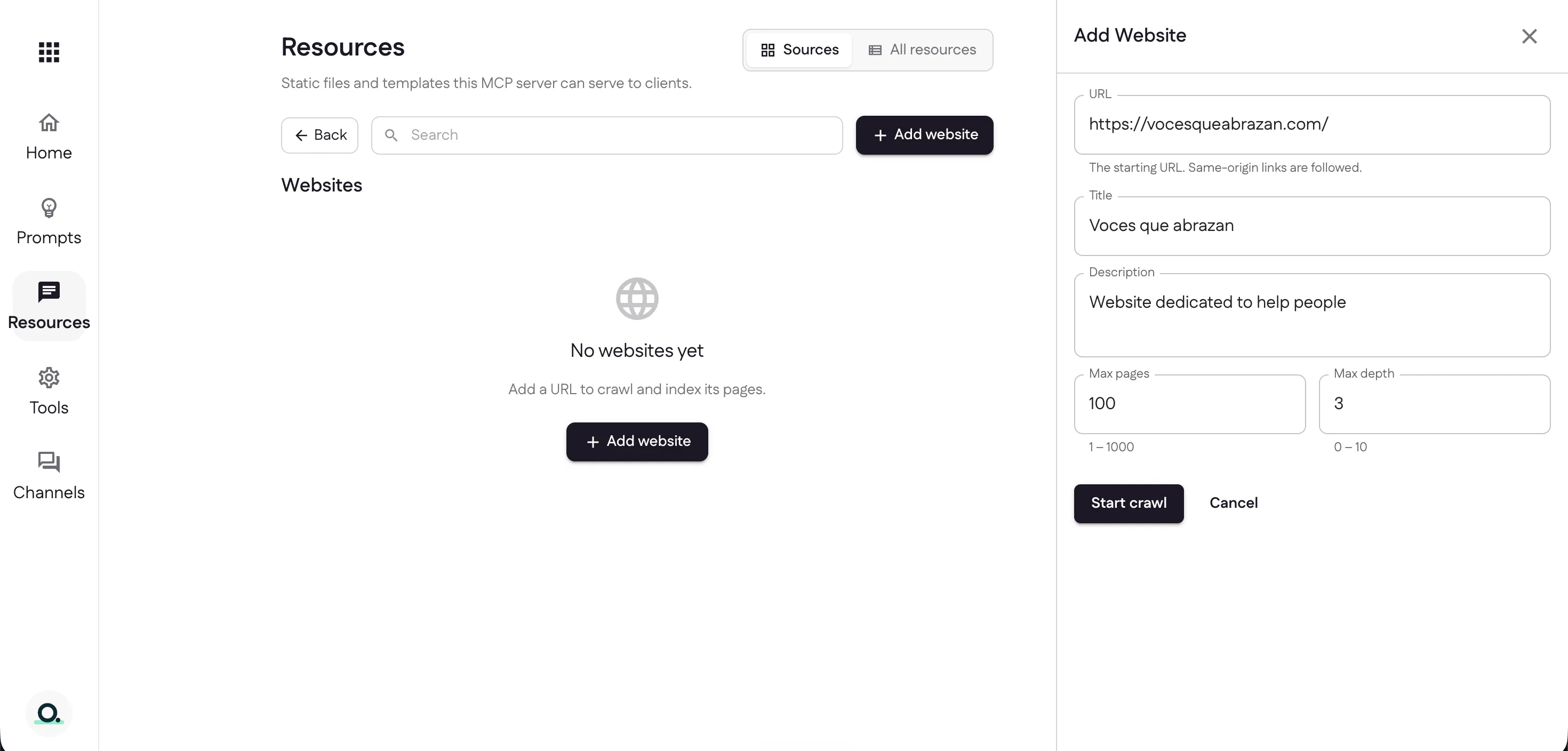
Select Add website, enter a starting URL (same-origin links are followed), and set Max pages and Max depth. Then select Start crawl.
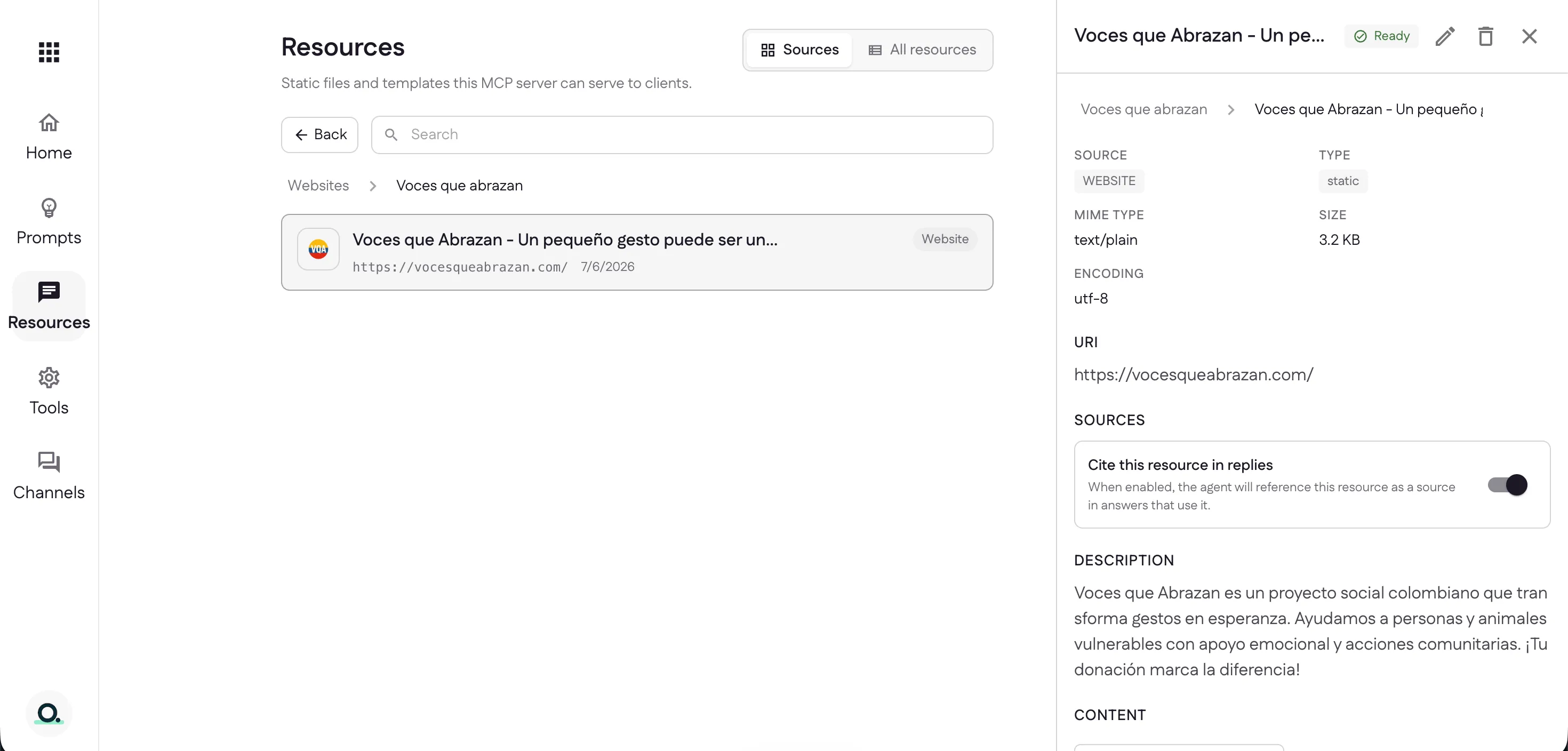
When the crawl finishes, the site’s pages are indexed and searchable — shown Ready just like any other resource.
Next: let it take action with tools.
Last updated