 Star
Star Documentation
Resources
Give your AI knowledge to search — import from Google Drive or OneDrive, upload files directly, or crawl a website.
Resources are the documents and knowledge your assistant can search, so it
answers from your own content instead of guessing. Add them from Google Drive,
OneDrive, a website crawl, or by uploading files directly. Each resource gets a
resource:// URI and, once processed, is marked Ready and becomes searchable
by your AI.
Why add resources
- Grounded, accurate answers. Your AI replies from your actual documents, not from general training — fewer made-up answers, more citations you can trust.
- One knowledge base, every channel. Add a file once and it’s searchable from every linked channel and MCP client at the same time.
- Bring what you already have. Pull straight from Google Drive or OneDrive, upload files, or crawl a whole website — no reformatting or copy-paste.
- Always current. Re-sync a drive or re-crawl a site and the index updates — your assistant answers from the latest version.
- Show your sources. Turn on citations and the assistant references the exact resource behind each answer, so readers can verify it.
Where resources come from
The Resources page groups everything by source: Google Drive, OneDrive, Websites, and folders you fill with your own uploads.
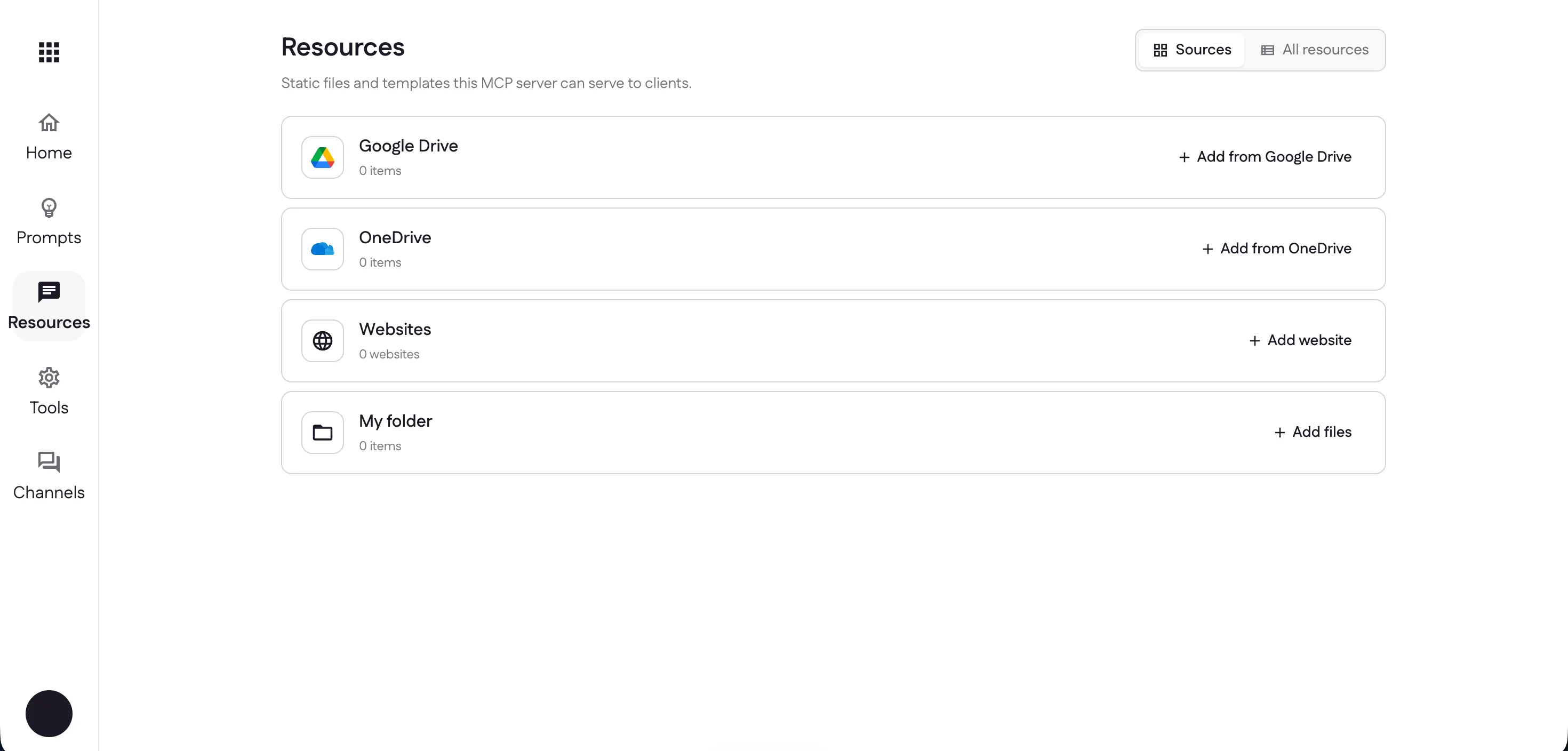
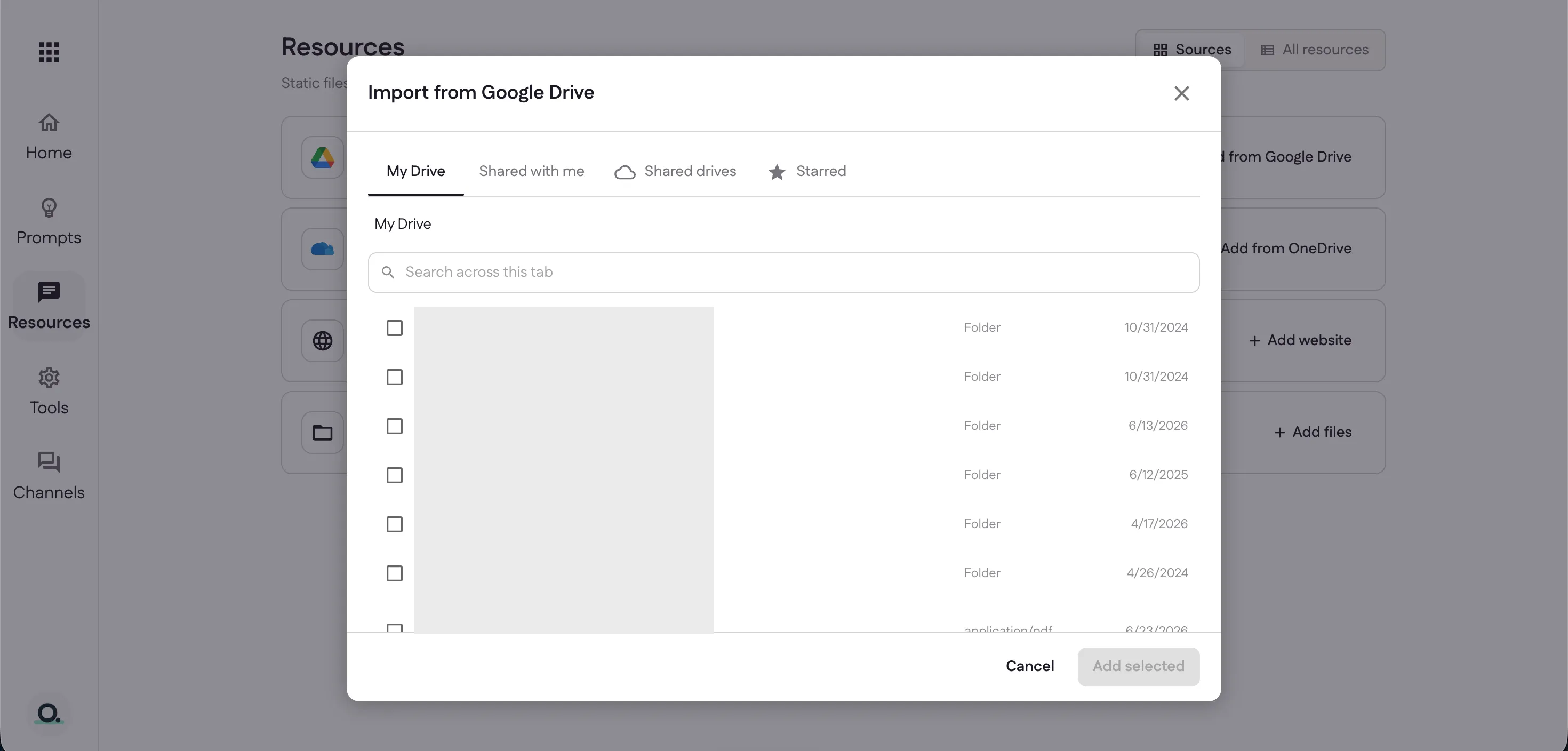
Import from Google Drive or OneDrive
Choose Add from Google Drive to open the picker. Browse My Drive, Shared with me, Shared drives, or Starred, tick the files you want, and select Add selected — Ganju imports and indexes them for you.
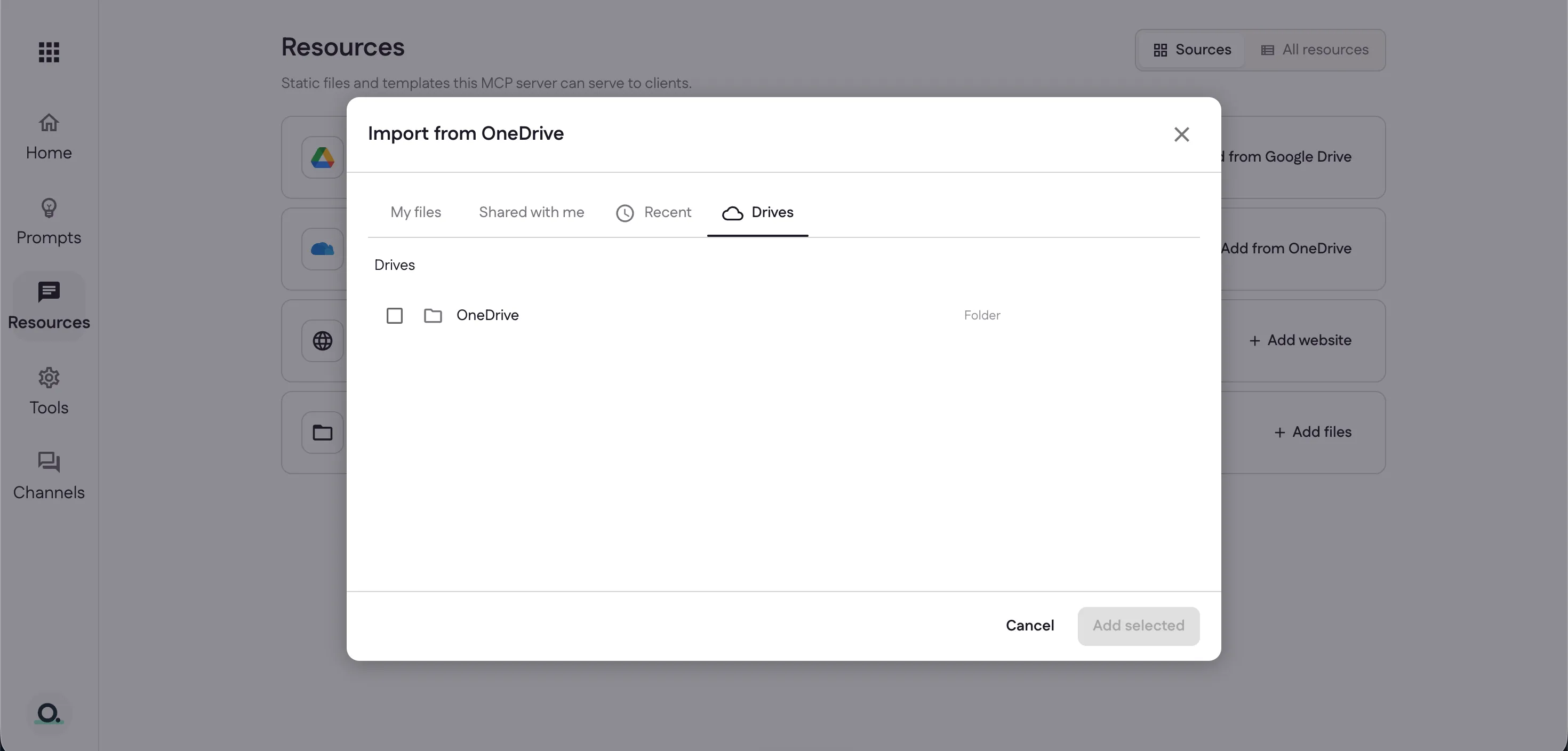
OneDrive works the same way — browse My files, Shared with me, Recent, or Drives, then add your selection.
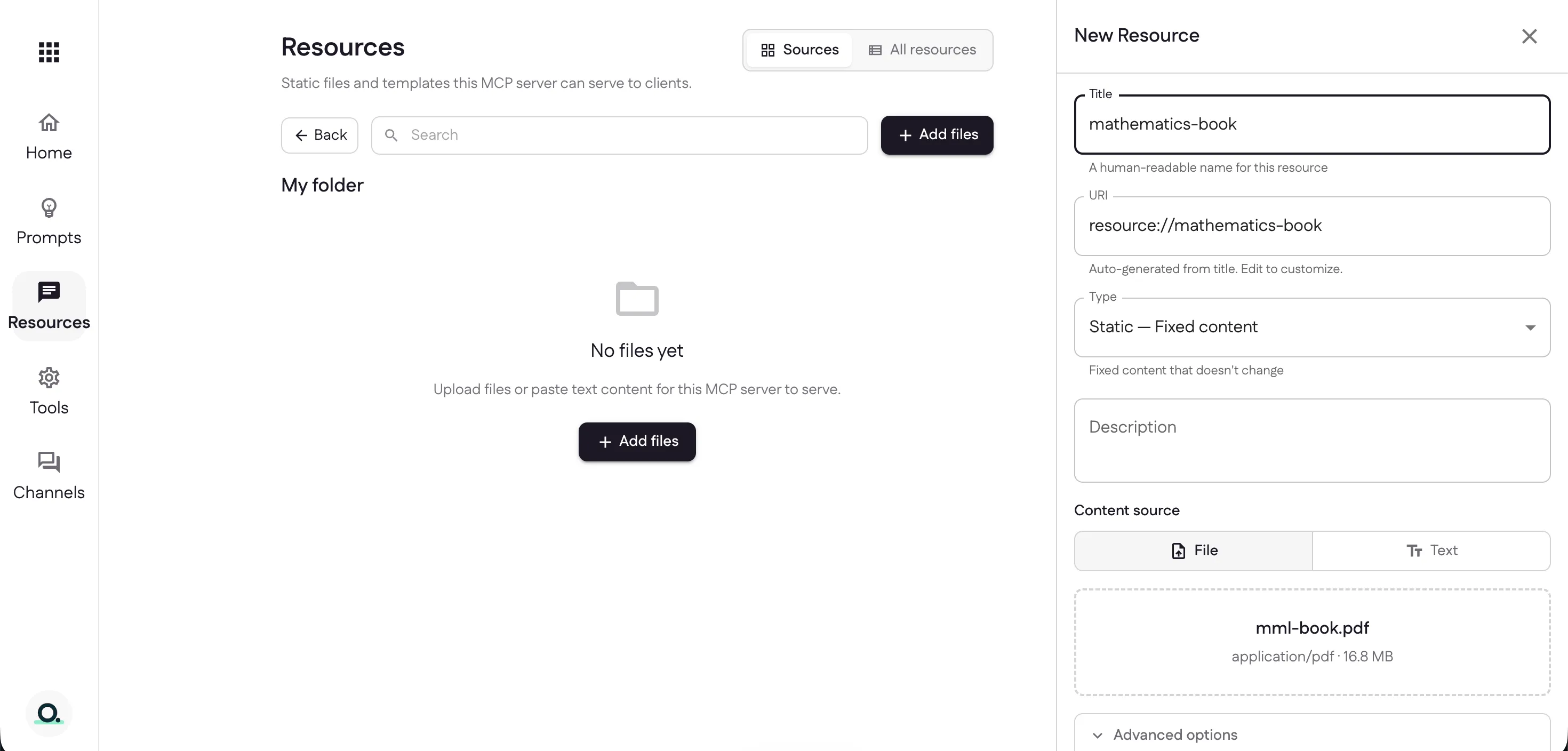
Upload a file
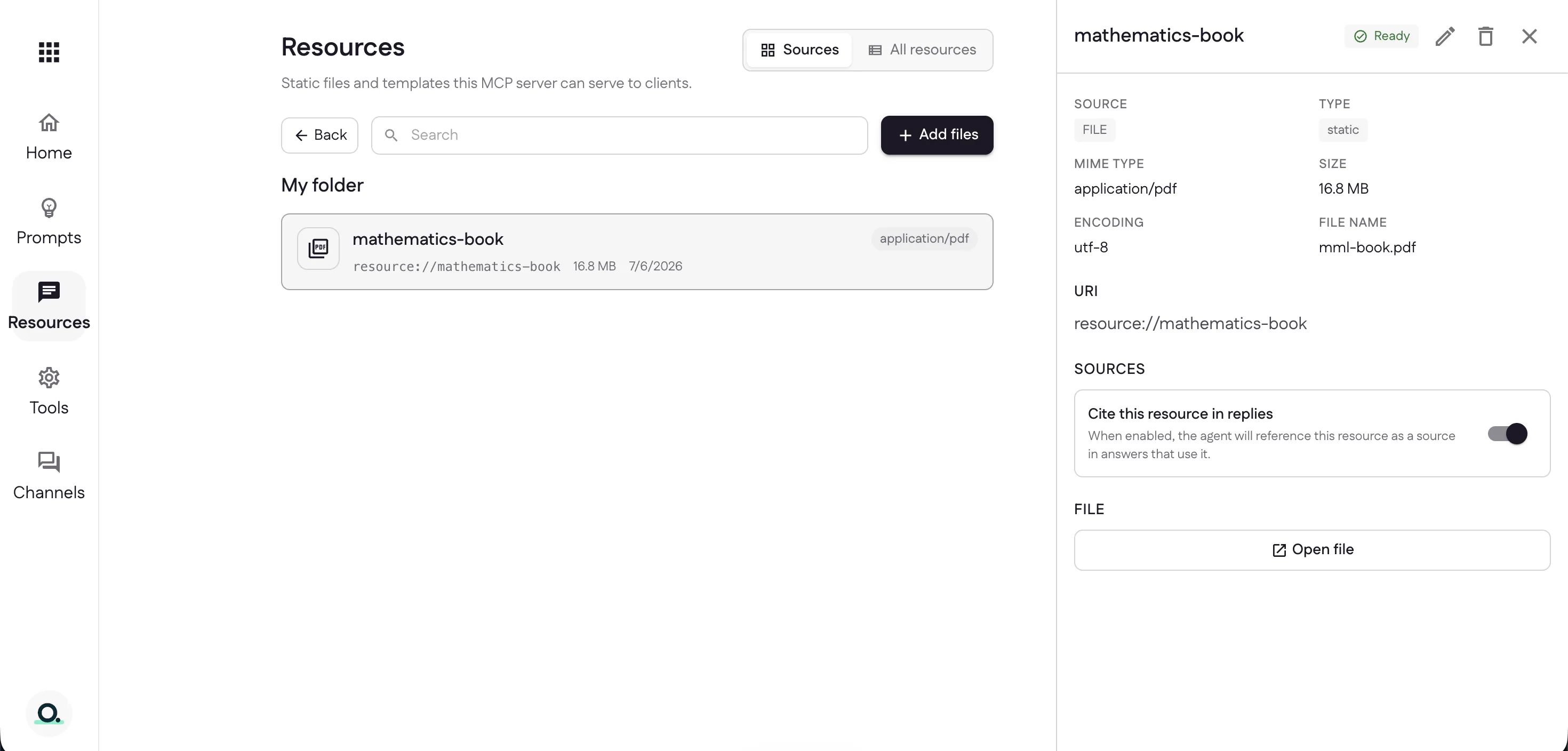
Inside a folder, select Add files. Give the resource a title — its URI is
generated for you (like resource://mathematics-book) and can be edited — pick a
type, and attach a file or paste text directly.
Once it’s processed the resource shows Ready, along with its type, size, and URI. Turn on Cite this resource in replies to have your assistant reference it as a source in any answer that uses it.
Crawl a website
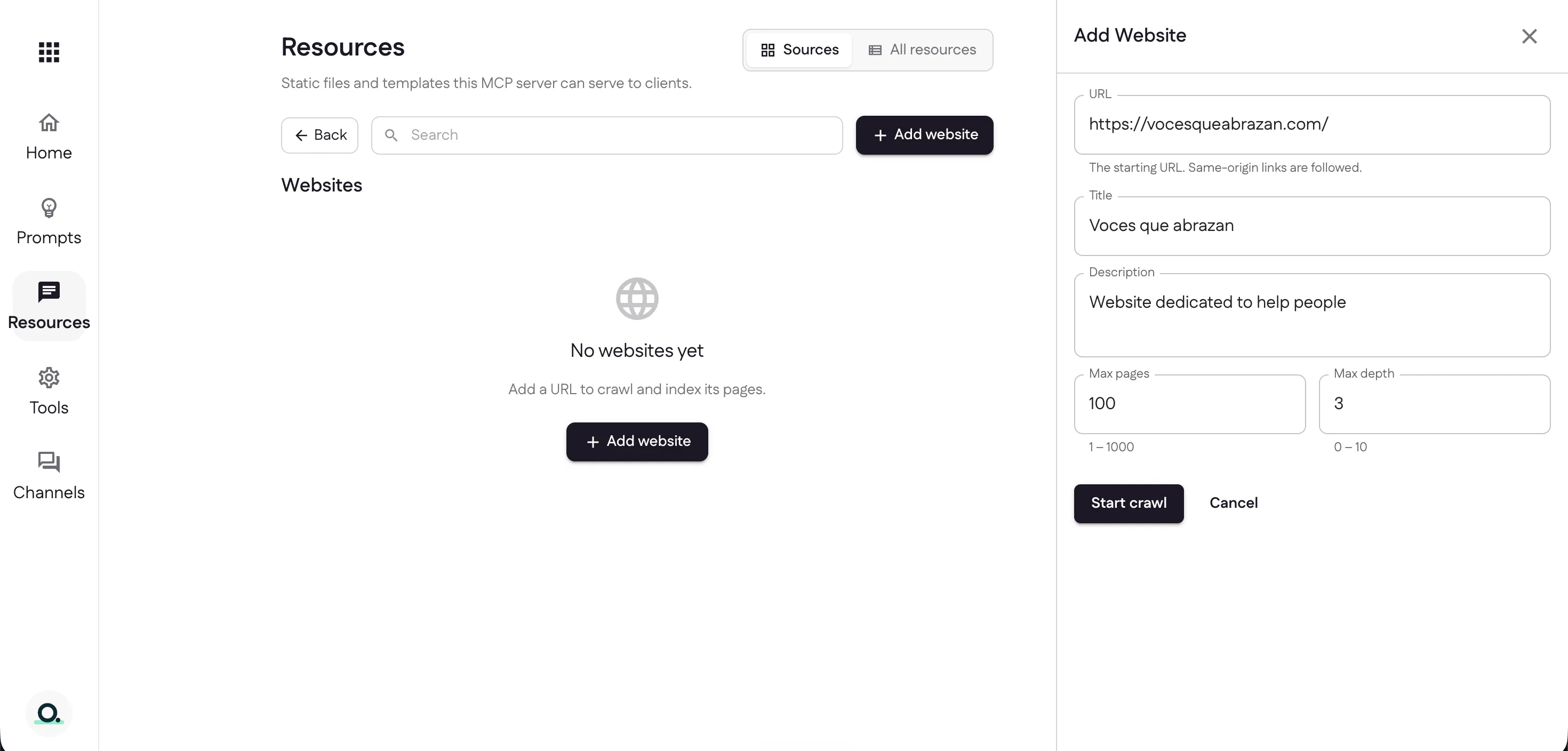
Select Add website, enter a starting URL (same-origin links are followed), add a title and description, and set Max pages (1–1000) and Max depth (0–10). Then select Start crawl.
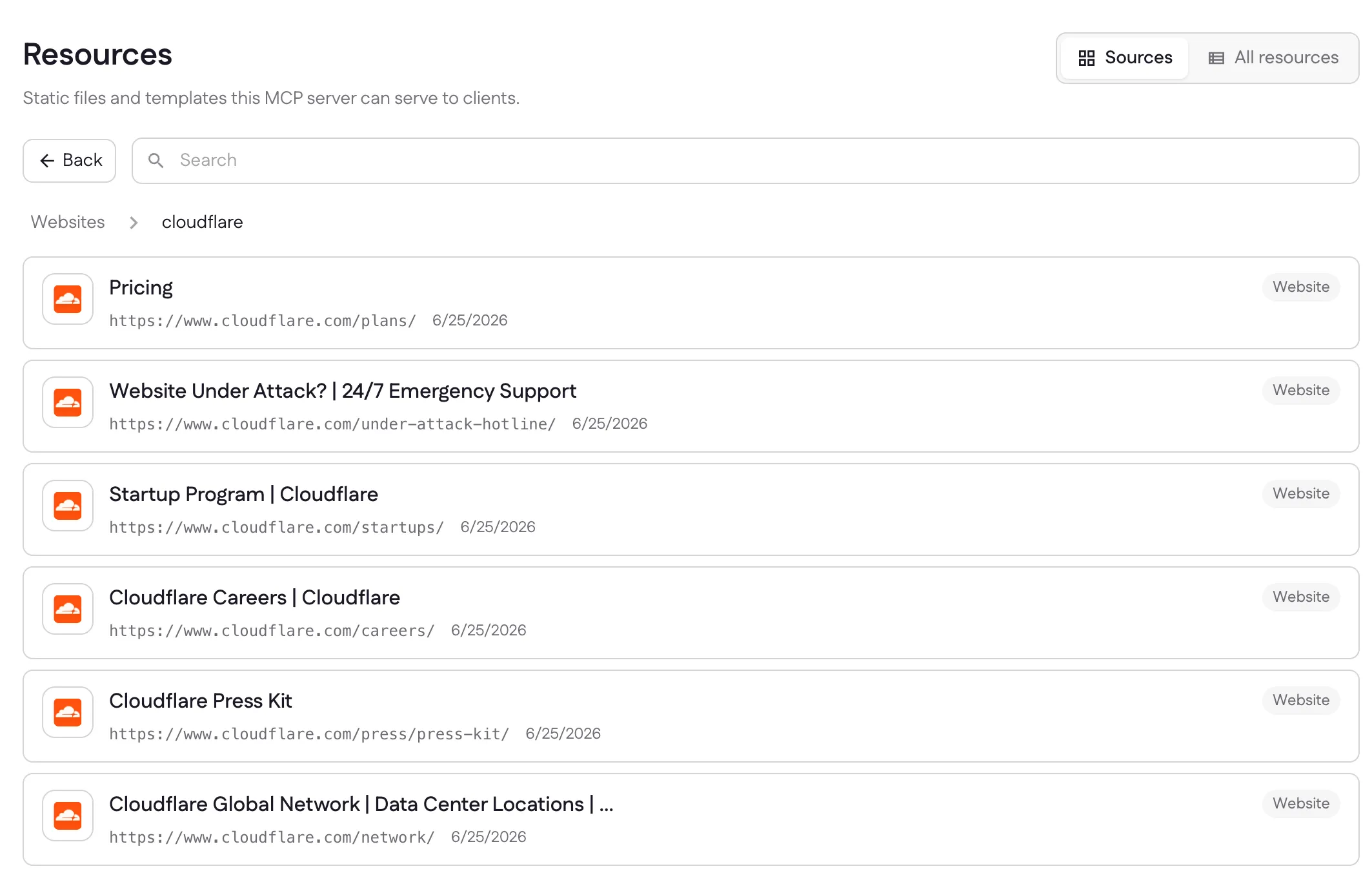
Ganju crawls the site and indexes each page it finds as its own searchable resource. Open the website’s group to browse every page it discovered, each with its title, URL, and crawl date.
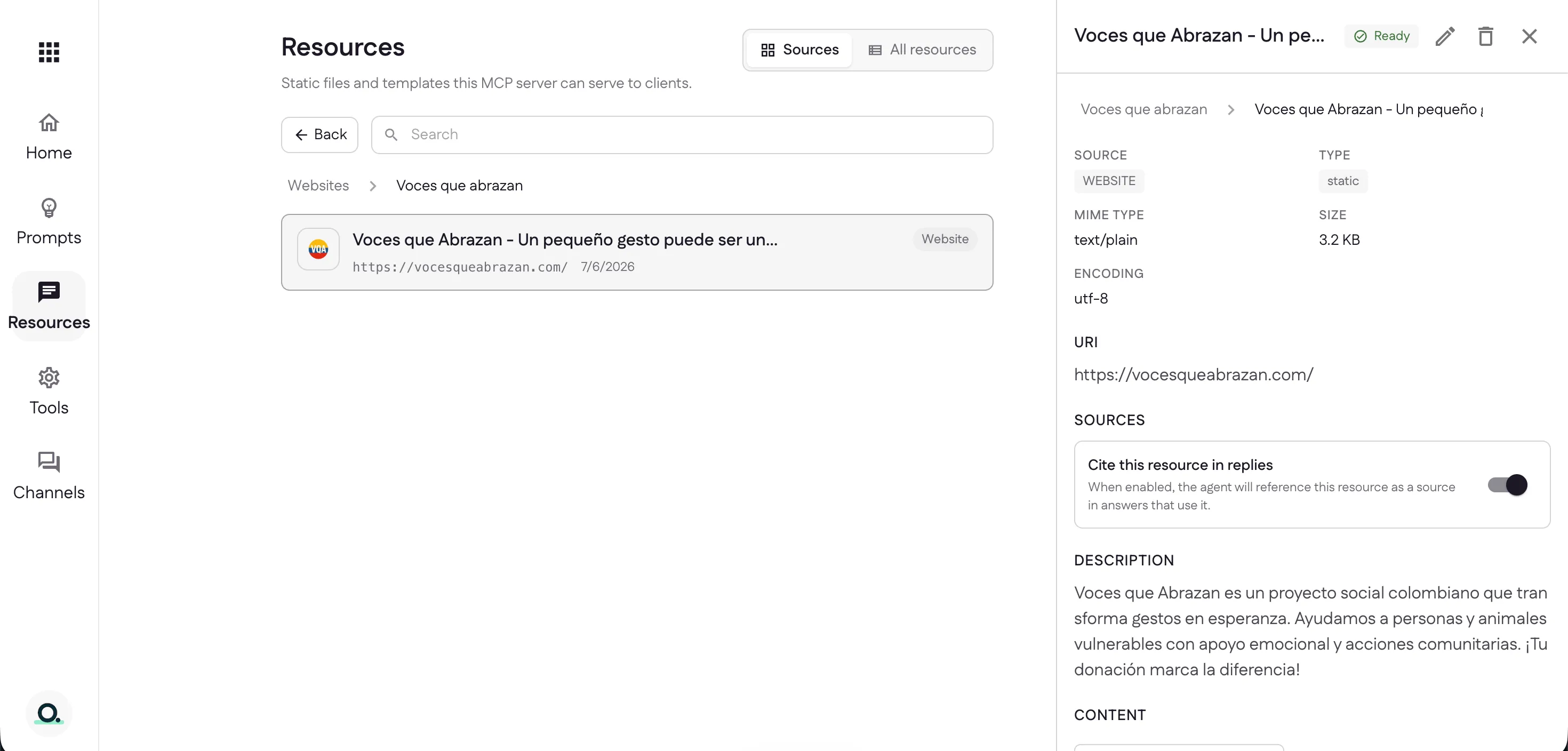
Select any page to see its details — source, type, MIME type, size, URI, and description — and it’s marked Ready just like any other resource, with the same Cite this resource in replies toggle.
See it in action
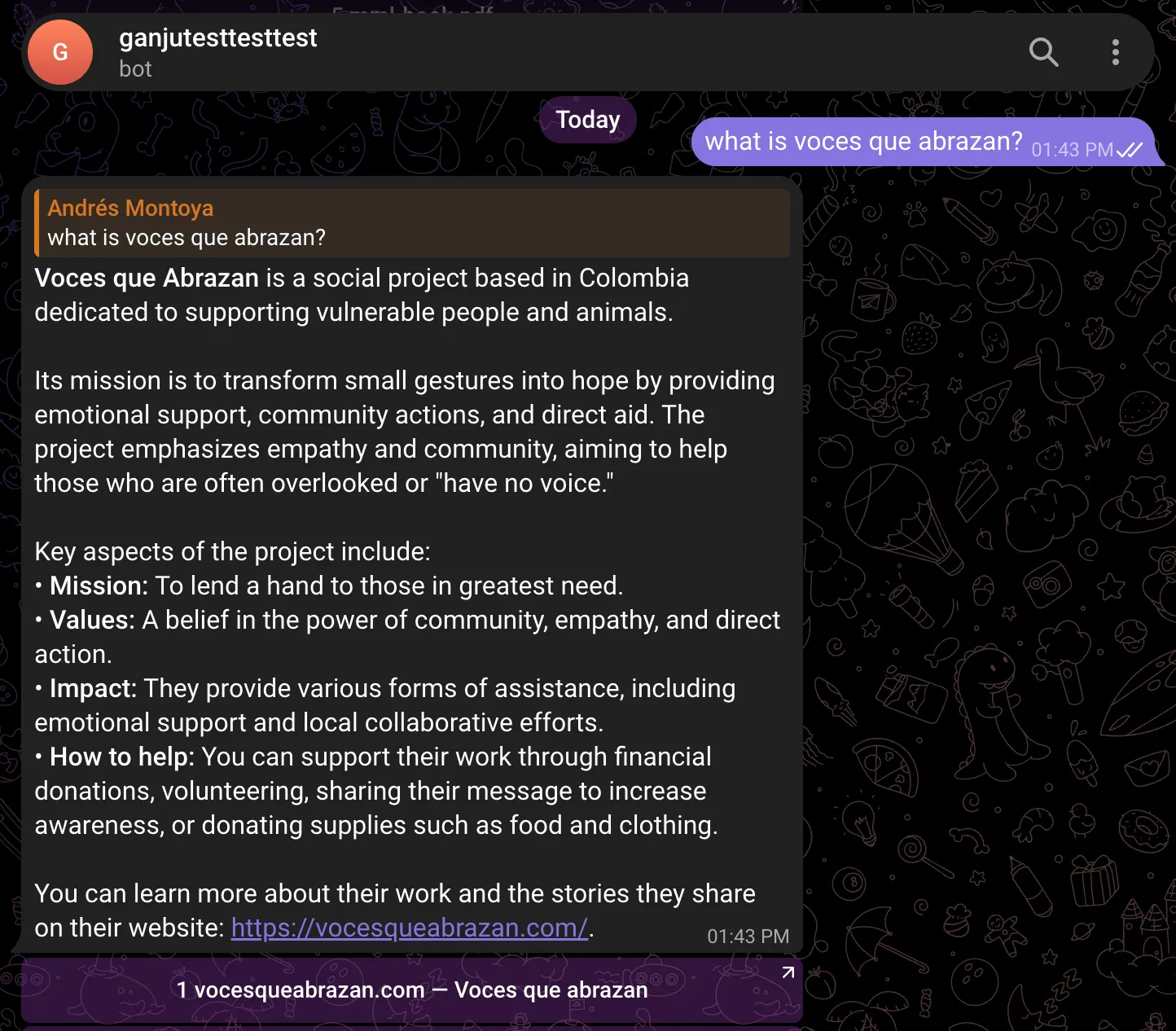
Once a resource is Ready, your assistant searches it automatically. Ask a question in any linked channel and it answers from your content — and, with citations turned on, it names the source right under the reply.
Next: let your AI take action with tools.
Last updated