 Star
Star Documentation
Prompts
Create reusable prompt templates that become slash commands in your chat channels.
Prompts are reusable message templates your project exposes. In any linked
chat channel, each prompt becomes a slash command people can run by name — so
a common request becomes a one-word shortcut. Use {{variables}} in a message
for values that get filled in when it runs.
Want the full picture? This is the quick version. The complete Prompts guide covers multi-turn templates, typed variables, and editing messages as JSON.
Create a prompt
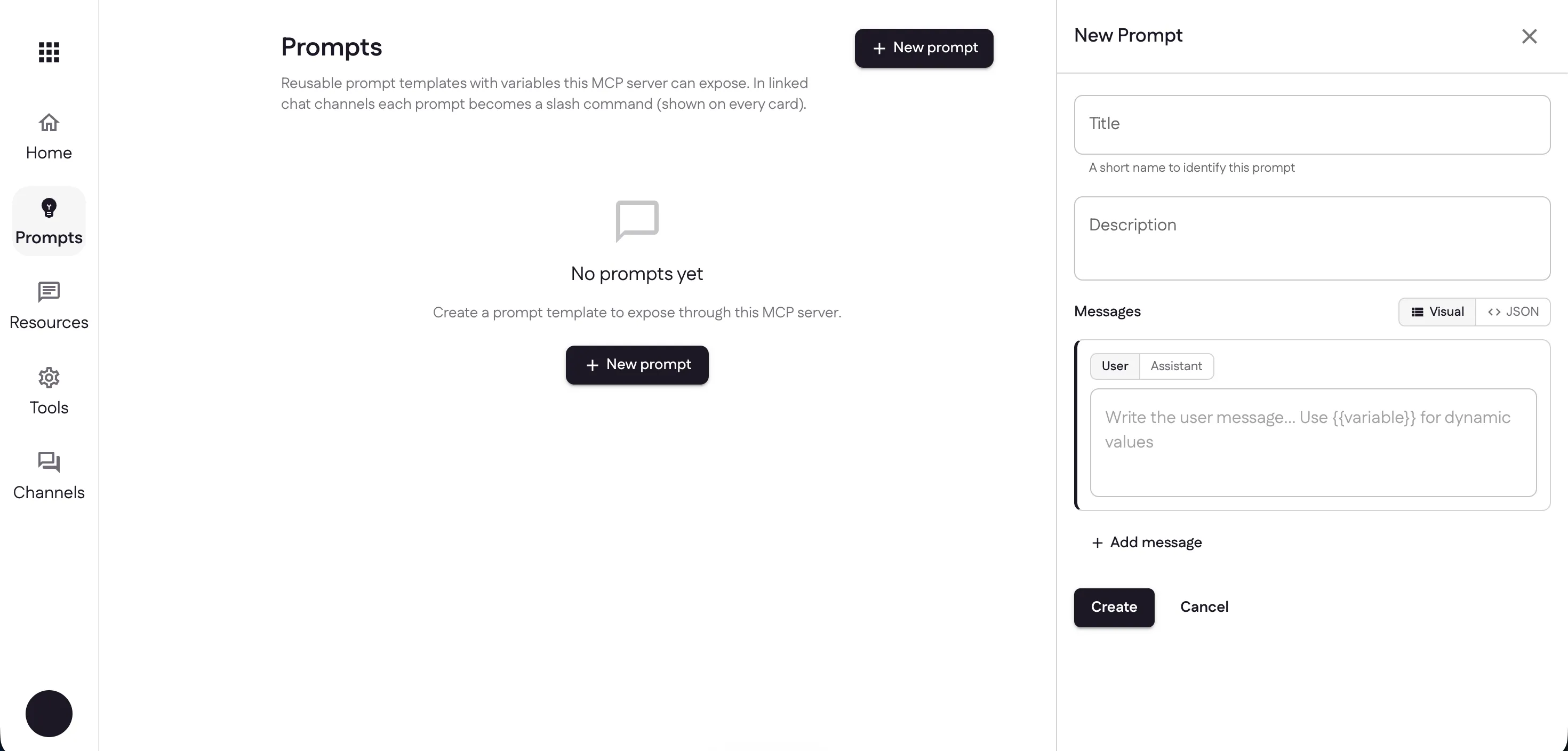
Open the Prompts page and select New prompt. A panel opens where you’ll build the template.
Fill it in
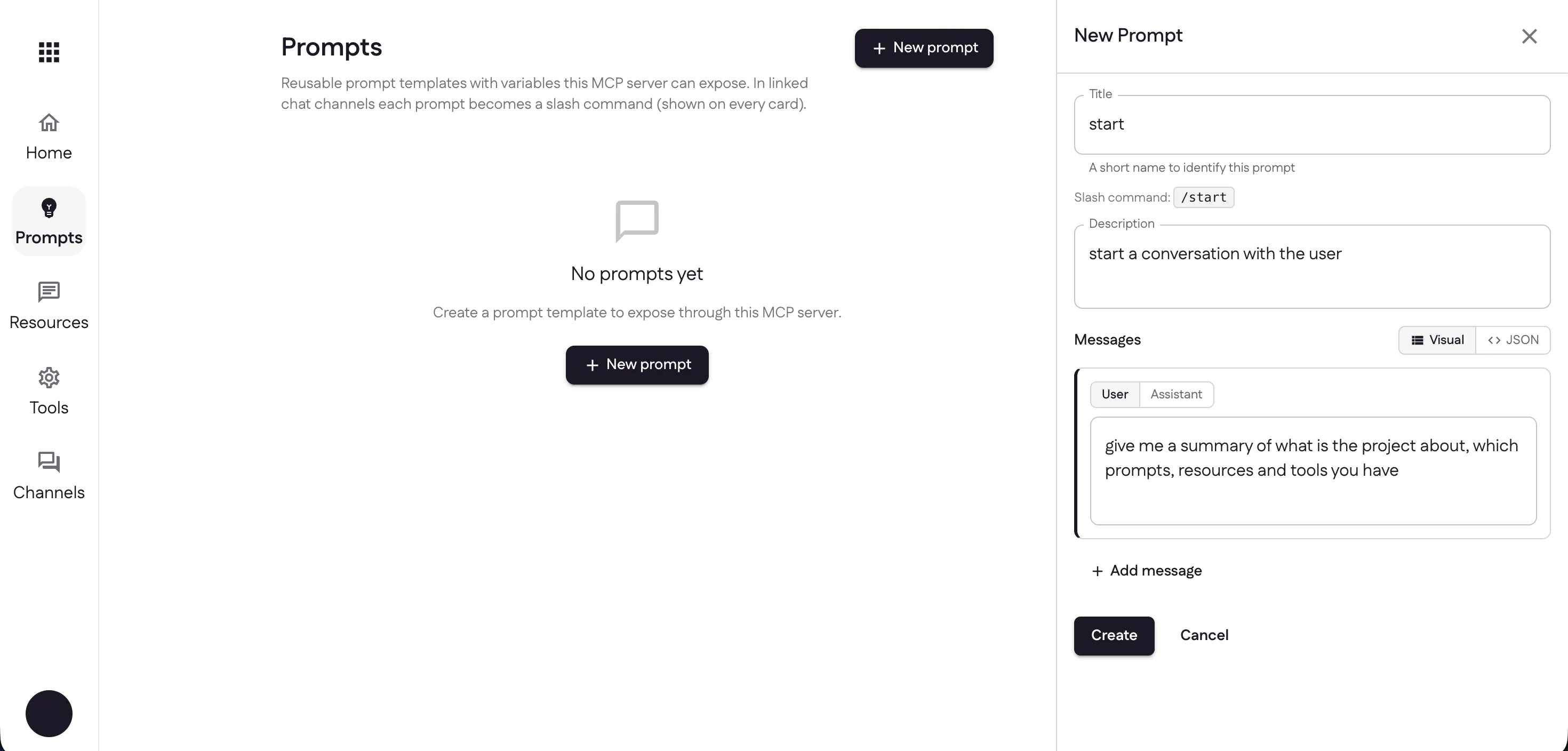
Give the prompt a title — Ganju turns it into the slash command shown just
below (here, start becomes /start). Add a short description, then write one or
more messages, switching each between User and Assistant as needed. Prefer
raw JSON? Toggle Visual / JSON at any time.
Use it
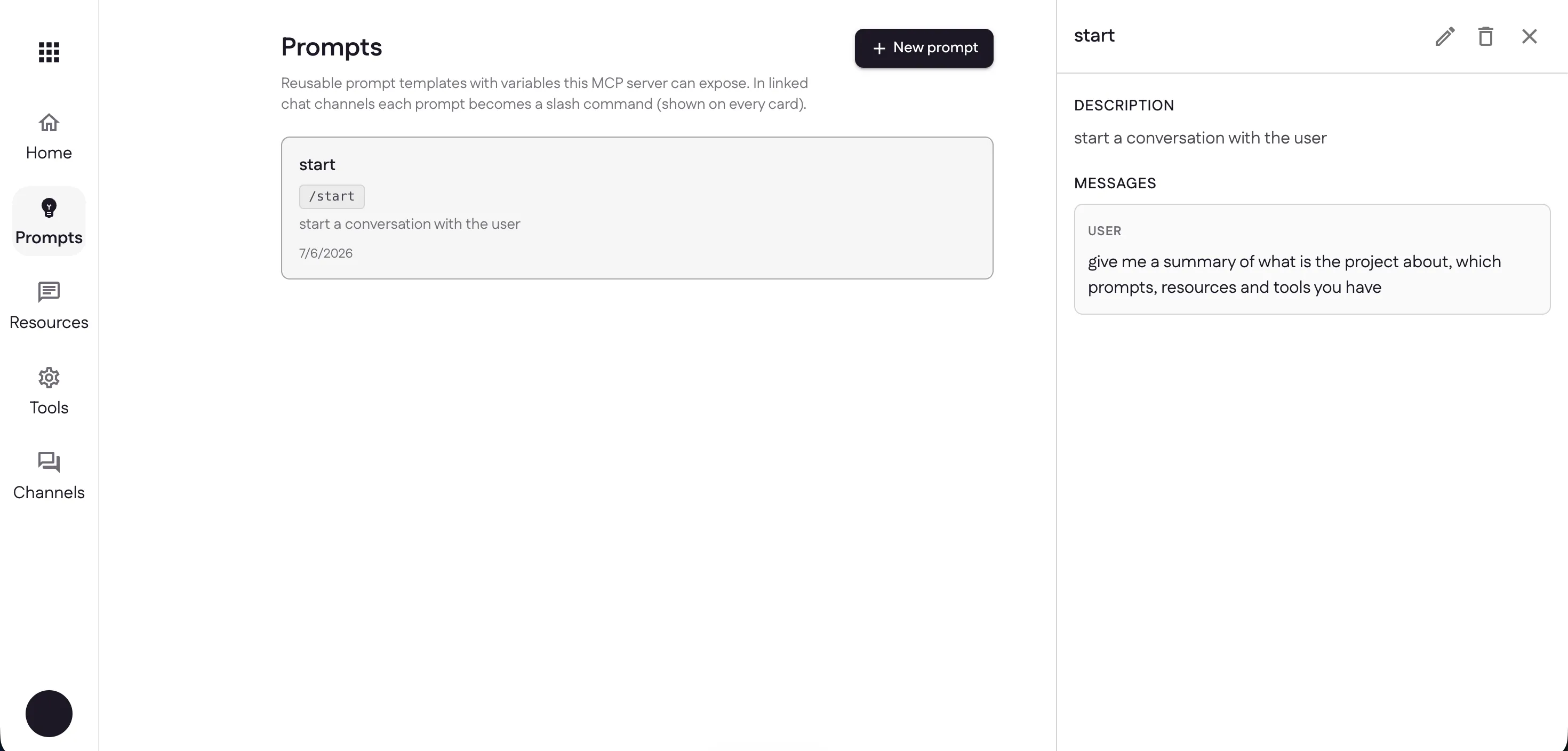
Select Create and the prompt appears as a card with its slash command, description, and messages — ready to run from any linked channel.
Next: give it something to work with — add resources.
Last updated