 Star
Star Documentation
MCP clients
Copy your project's MCP URL and connect it to any MCP client — Claude, ChatGPT, Cursor, or VS Code — so your AI works right inside the tools you already use.
Every Ganju project is a Model Context Protocol (MCP) server. That means any MCP-compatible client — Claude, ChatGPT, Cursor, VS Code, and more — can connect to it and get all your prompts, resources, and tools. Where channels deliver your assistant to other people, MCP clients wire it into your own workflow.
Copy your MCP URL
Each project has its own MCP URL, shown at the top of the project Home. Select the copy button to grab it — that single link is everything a client needs.
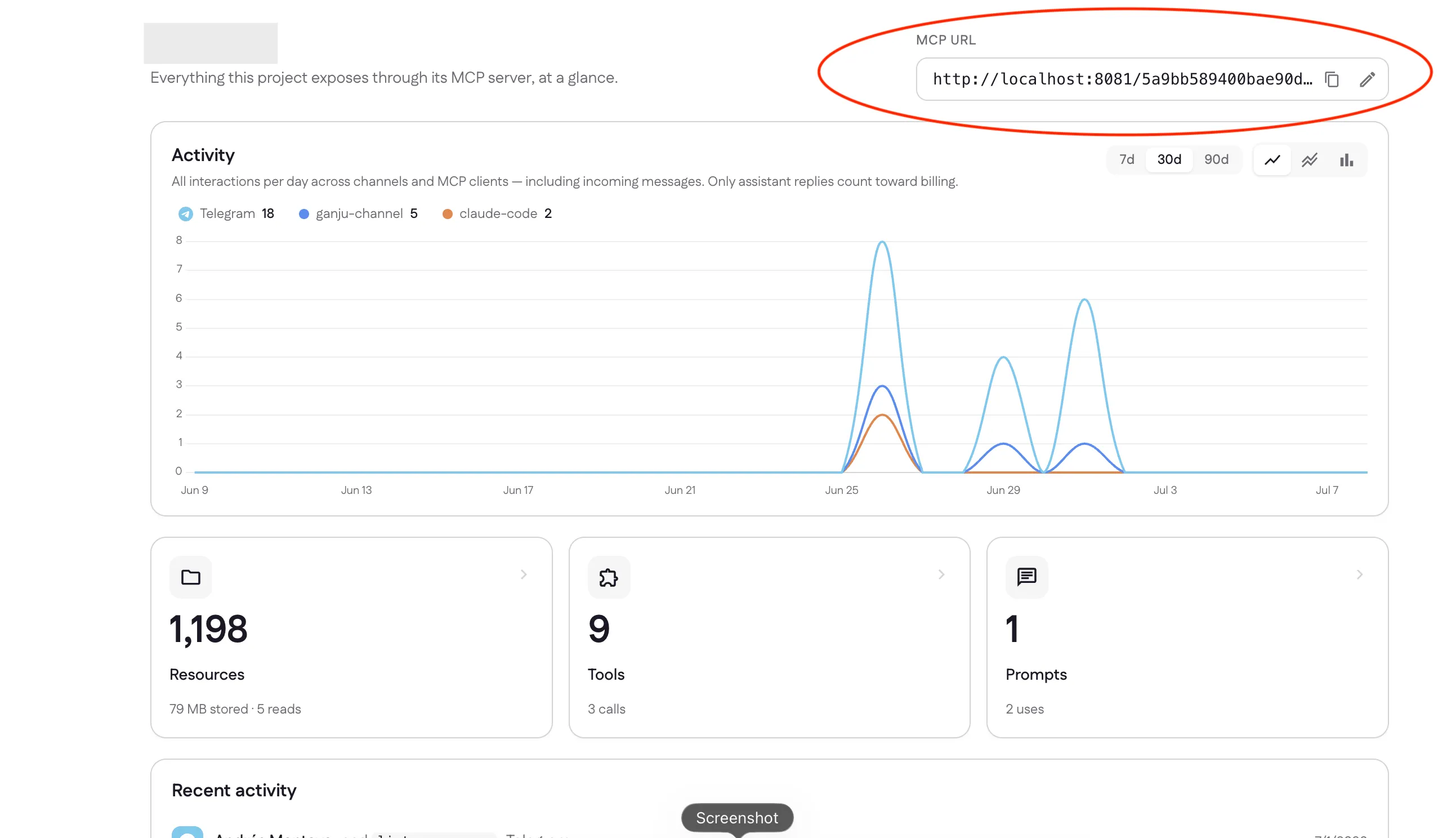
Home also charts all activity across channels and MCP clients together (a client
like claude-code shows up right next to your Telegram channel). Remember: only
your assistant’s replies count toward billing — incoming messages are free.
Client config
Select the pencil next to the MCP URL to open Edit MCP URL. Alongside the copyable URL, Ganju generates a ready-to-paste client config — the JSON block most MCP clients accept:
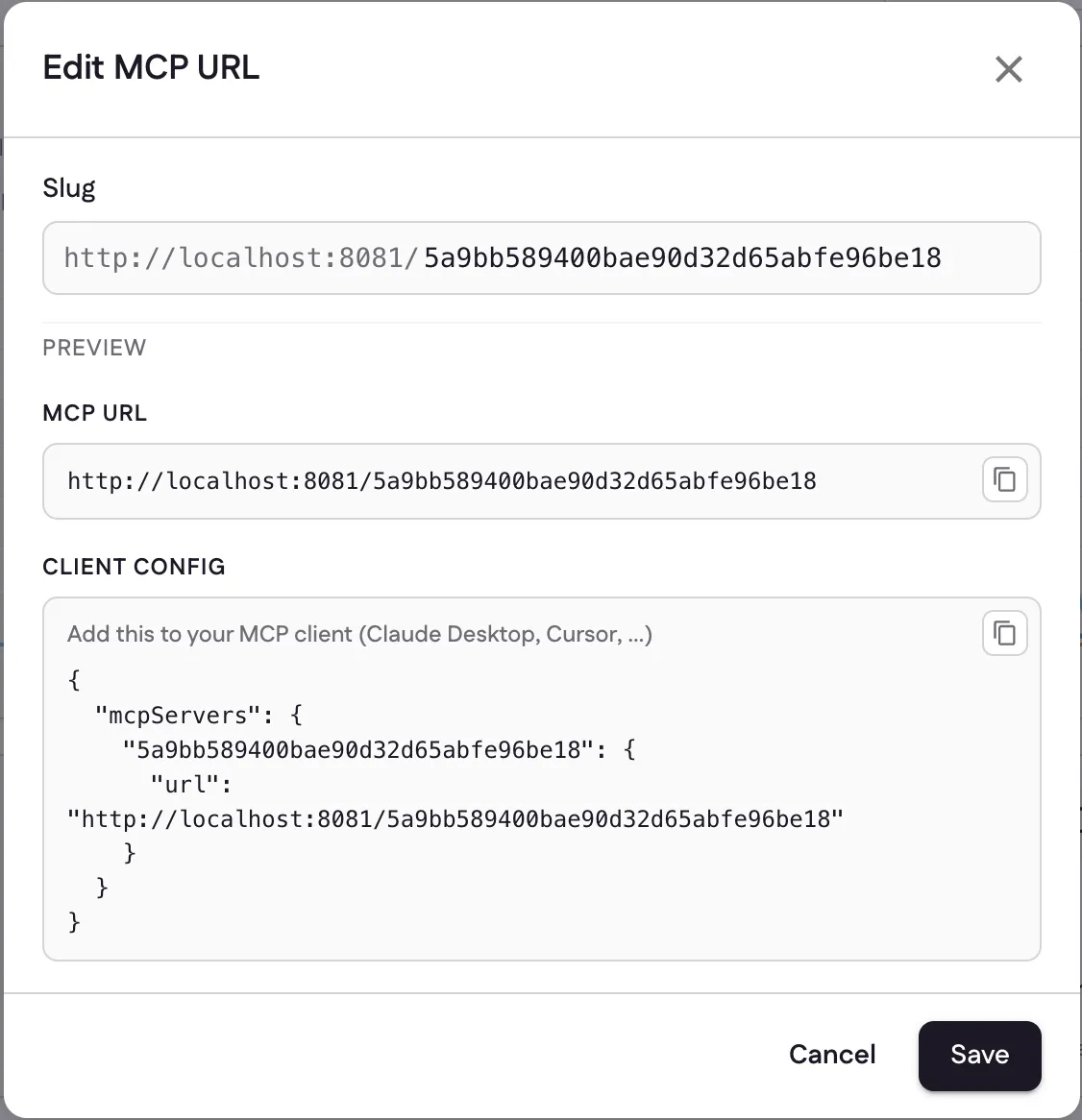
{
  "mcpServers": {
    "my-company": {
      "url": "https://my-company.mcp.ganju.ai"
    }
  }
}
Add it to your client
The steps differ slightly per client, so follow each one’s own documentation — in every case you’re pasting the MCP URL above (or the client-config JSON):
- Claude — Settings → Connectors → Add custom connector, then paste your MCP URL. See Claude’s custom-connector guide.
- ChatGPT — enable Developer mode, then Settings → Connectors → Advanced, and add your server URL. See Developer mode and MCP apps in ChatGPT.
- Cursor — Settings → Tools & MCP → New MCP Server, or drop the JSON in
.cursor/mcp.json. See Cursor’s MCP docs. - VS Code — Command Palette → MCP: Add Server, or edit
.vscode/mcp.json. See Add MCP servers in VS Code.
Once connected, ask the client to use your tools or search your resources — it routes through your Ganju project securely.
Custom URL on Pro
By default your MCP URL is a unique, auto-generated address. On the Pro plan you can set your own slug in the Edit MCP URL dialog, turning it into a clean, branded address like:
https://my-company.mcp.ganju.aiChange it any time — just reconnect your clients with the new URL. See Settings → Billing & plan for what Pro includes.
Last updated