 Star
Star Documentation
Channels
Deliver your assistant to real people on the apps they already use — Telegram, WhatsApp, Slack, and Discord — or connect it to any MCP client.
Channels are how you put your assistant in front of other people. Everything you’ve built — prompts, resources, and tools — comes along automatically; you just choose where people reach it. Connect a messaging app so clients and teammates chat with your AI where they already are, or connect any MCP client for a power-user workflow.
Why use channels
- Meet people where they are. No new app to install — your assistant lives in Telegram, WhatsApp, Slack, or Discord.
- One assistant, delivered everywhere. Every channel serves the same prompts, resources, and tools, so answers stay consistent across apps.
- Bring your own model. Each channel can run on the system default or a language model you configure — see Settings.
- Watch it work. Every conversation is logged in the dashboard so you can see exactly how people use your AI.
What’s available
Ganju supports four messaging platforms. Each has its own page with step-by-step instructions for creating the credentials it needs:
- Telegram — a single bot token from @BotFather.
- WhatsApp — the WhatsApp Business (Meta) Cloud API.
- Slack — a Slack app with a bot token and scopes.
- Discord — a Discord application and bot.
How it works
Open Channels and select Add channel. Pick a platform, choose the language model (or leave System default), and paste that platform’s credentials. Ganju stores them securely and wires up the connection — for Telegram it registers the webhook for you; for Slack, WhatsApp, and Discord it gives you a URL to paste back into that platform (each service page covers the exact steps).
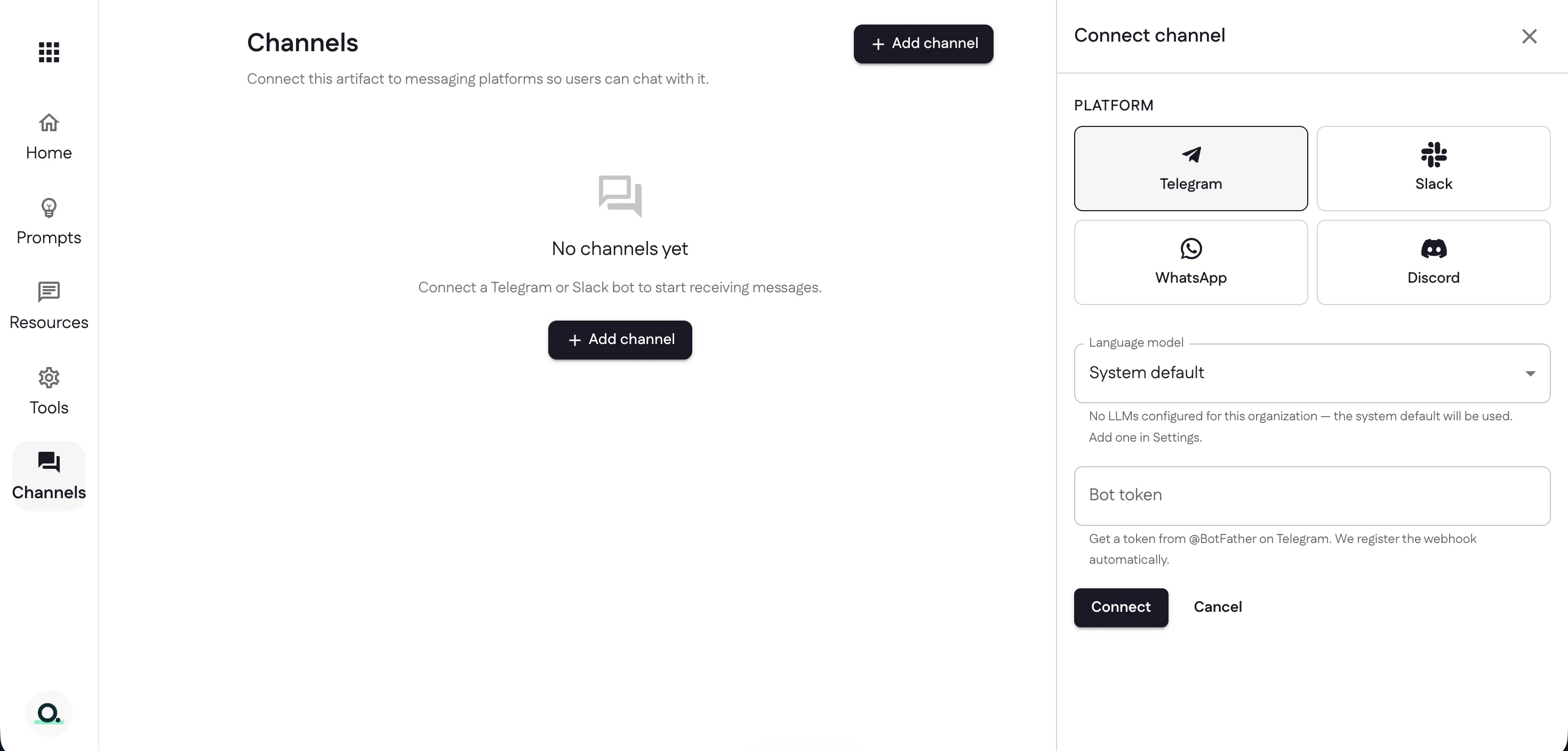
Once connected, the channel goes Active. From its Overview you can toggle Receiving messages, switch the model, watch activity, or remove the channel.
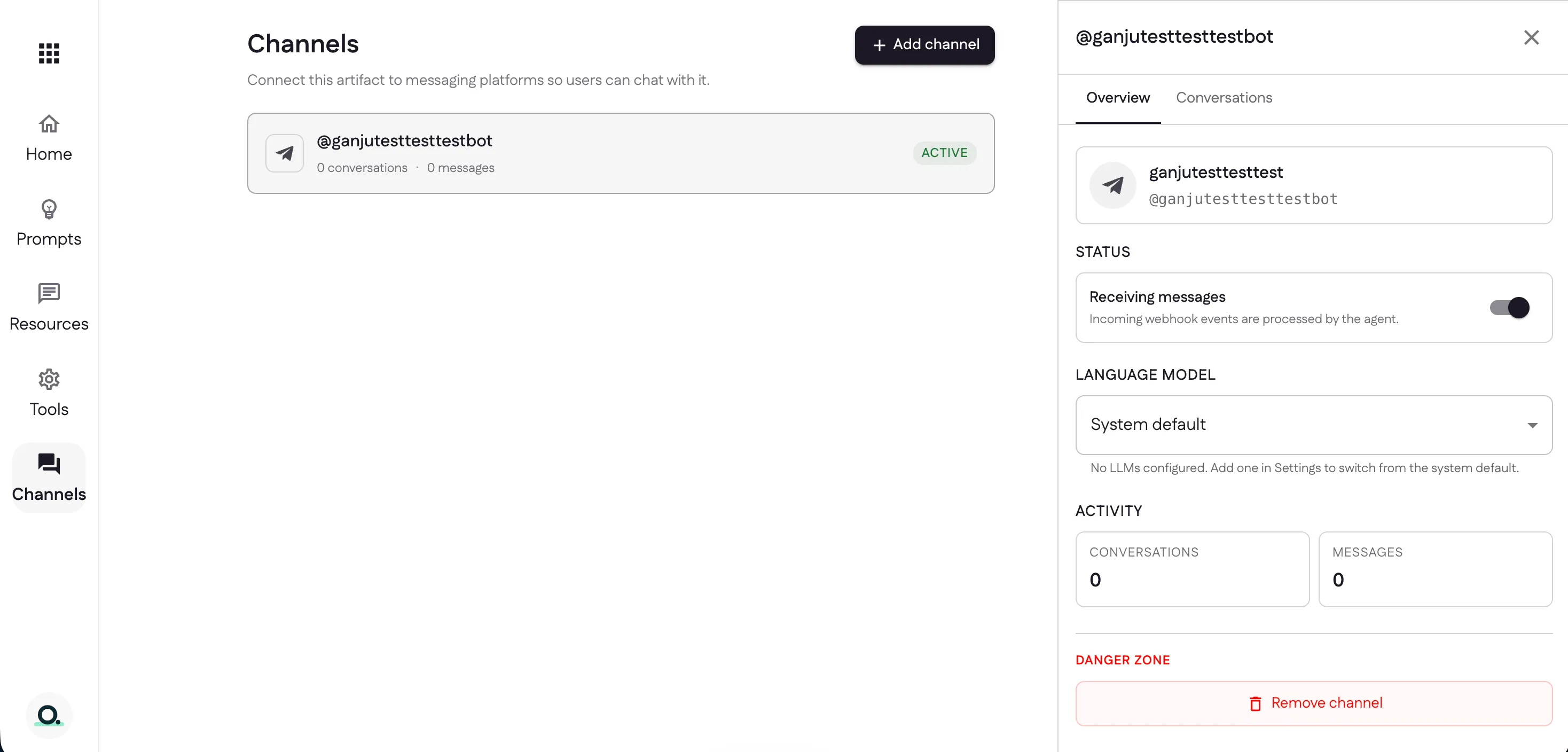
Choose the language model
Every channel runs on a language model. By default that’s the System default, but you can bring your own — your own provider and API key, configured once and reused across channels. We cover how to add one in Settings; until then, new channels simply use the system default.
Connect any MCP client
Messaging apps aren’t the only way in. Under the hood your project is a Model Context Protocol (MCP) server, so any MCP-compatible client — Claude, ChatGPT, or Cursor — can connect to the very same assistant, with all your prompts, resources, and tools available. Channels are for the people you serve; MCP clients are for wiring your AI into your own tools and workflows. Both point at one project. We’ll cover connecting a client in detail in the MCP clients guide.
Monitor conversations
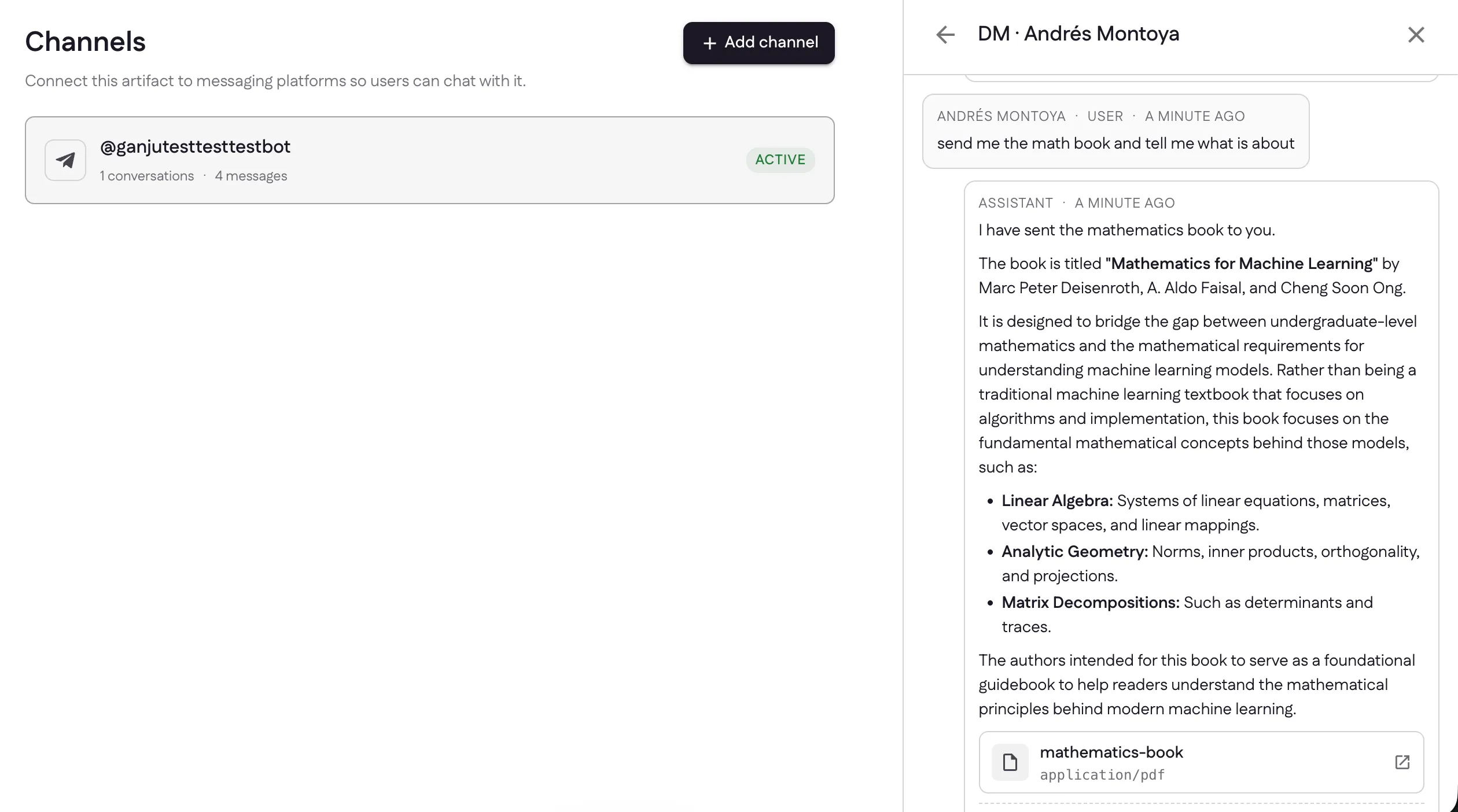
Back in the dashboard, each channel’s Conversations view shows every exchange, so you can see exactly how people are using your assistant.
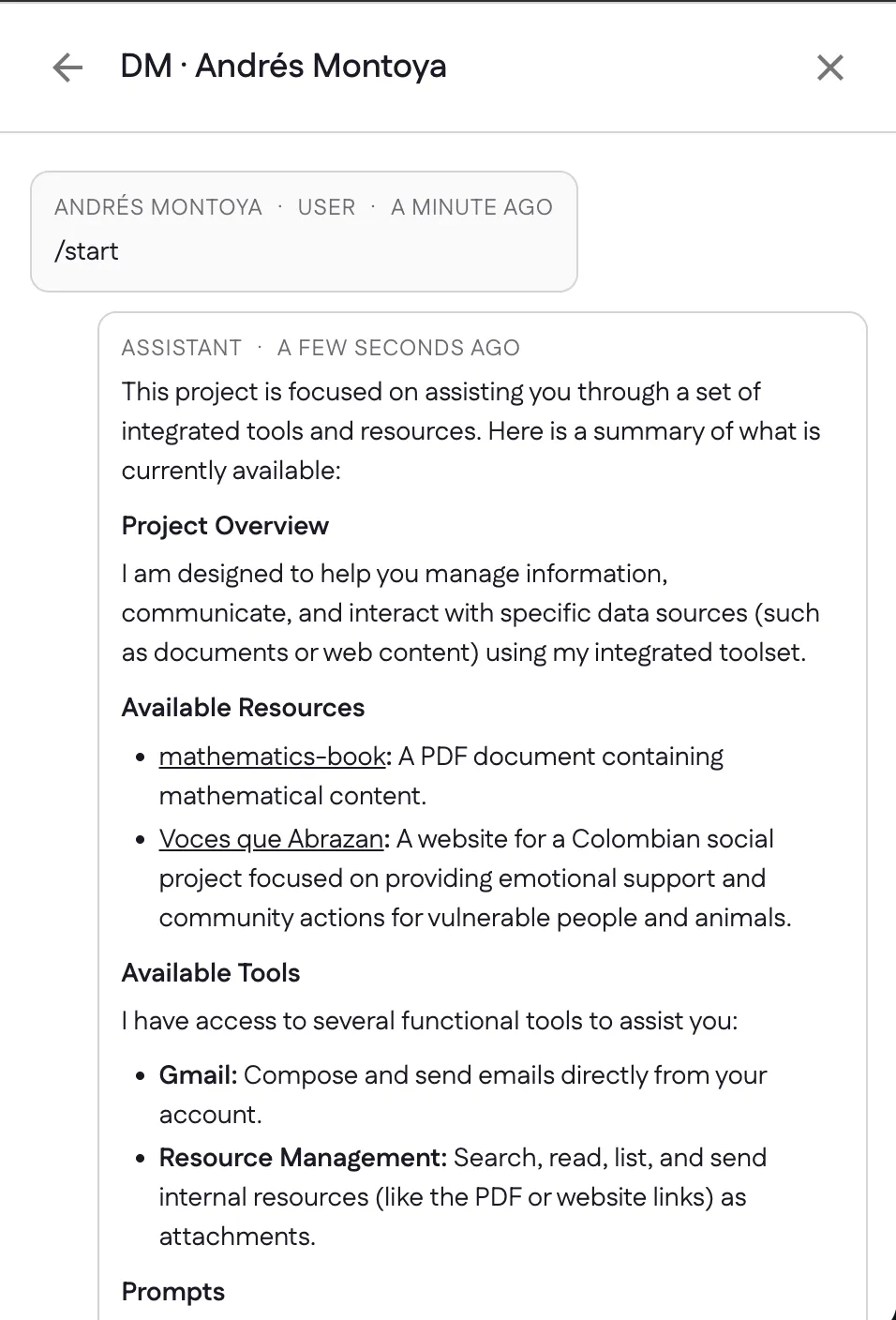
The channel card keeps a running count of conversations and messages, and each reply shows the resources it delivered as attachments.
Next: manage models, members, and billing in Settings.
Last updated