 Star
Star Documentation
Channels
Offer your AI to clients and teams on the apps they already use — Telegram, Slack, WhatsApp, and Discord.
Channels are how you deliver your assistant to other people — clients, your team, or individuals. Connect Telegram, Slack, WhatsApp, or Discord and they chat with it on the app they already use. Everything you set up — prompts, resources, and tools — comes along automatically.
Want the full picture? This is the quick version. The complete Channels guide has step-by-step setup for Telegram, WhatsApp, Slack, and Discord, plus connecting MCP clients.
Add a channel
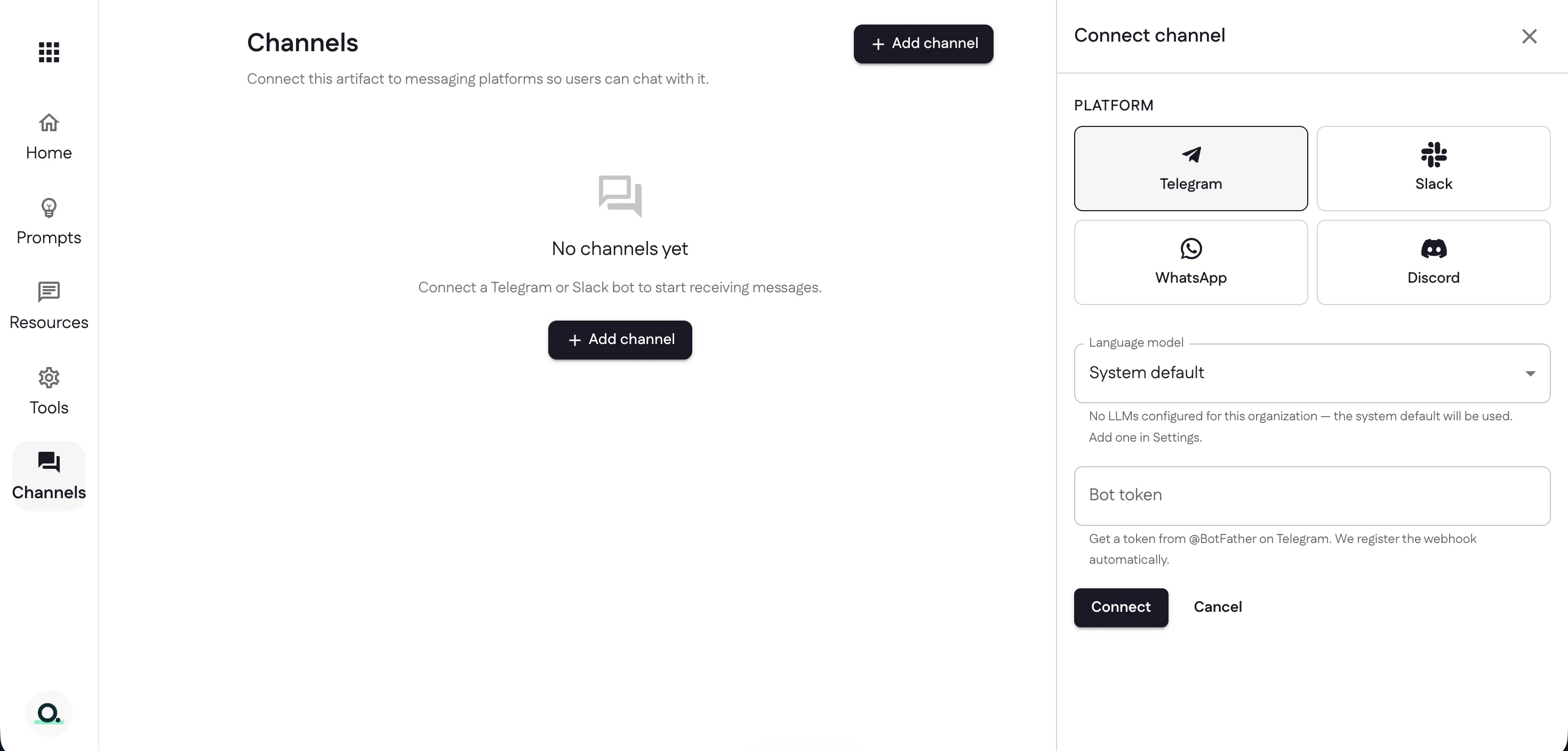
Open Channels and select Add channel. Pick a platform, choose the language model (or leave System default), and paste a bot token — Ganju registers the webhook for you.
Create a Telegram bot
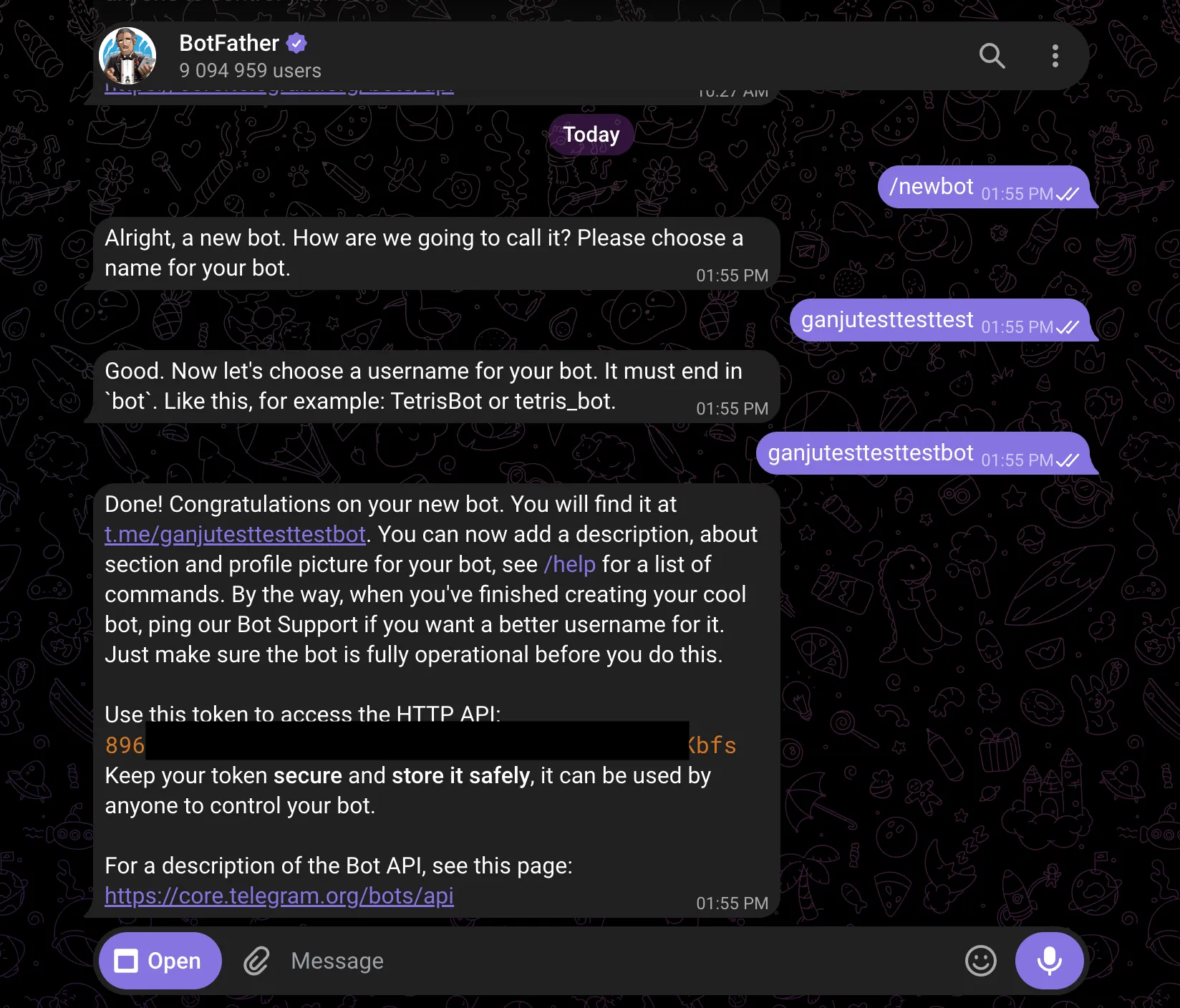
For Telegram, the token comes from Telegram’s own @BotFather. Message it, send
/newbot, choose a name and a username ending in bot, and copy the token it
gives back. Keep it secret — anyone with it can control your bot.
Connect it
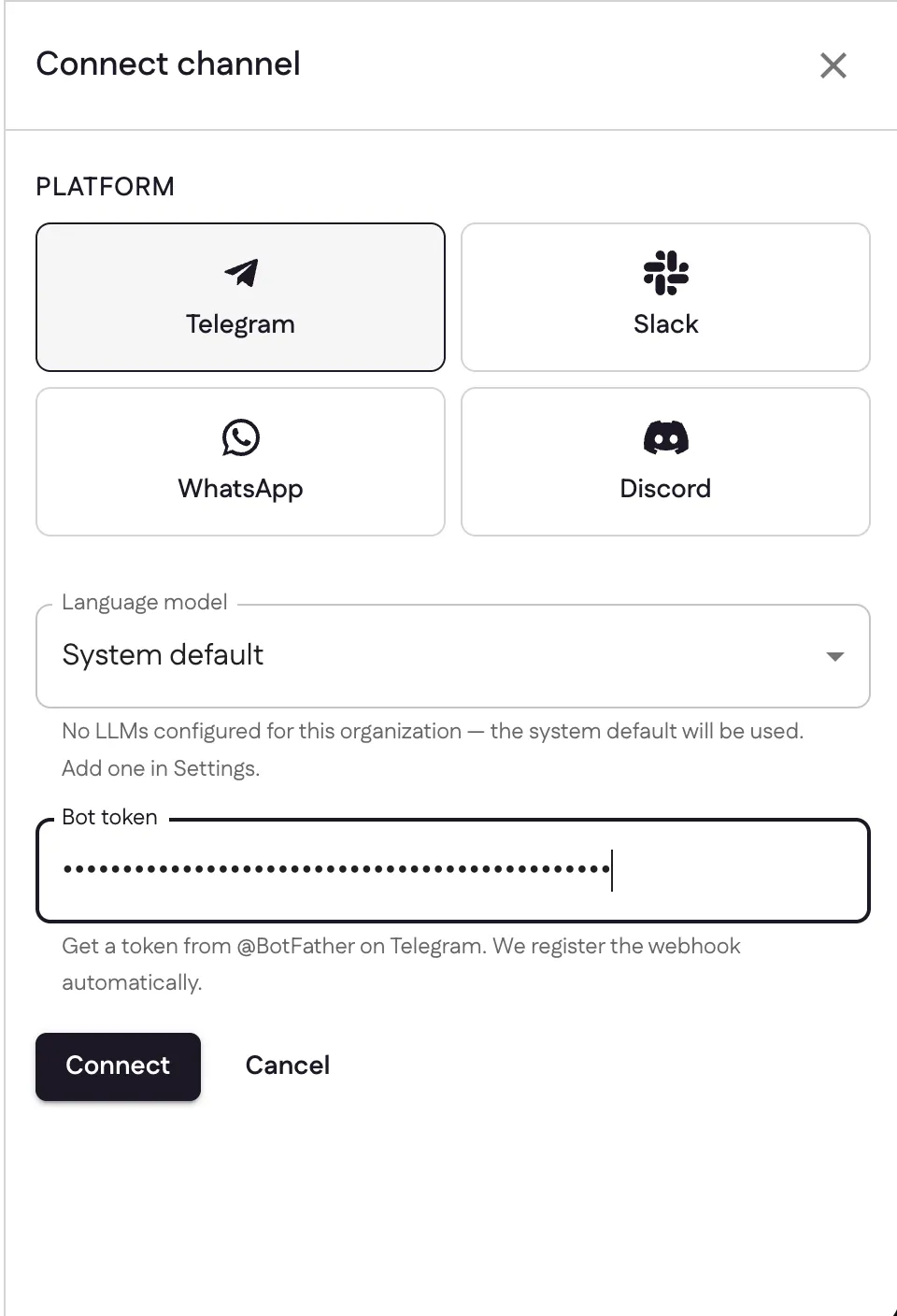
Paste the token into the Bot token field and select Connect.
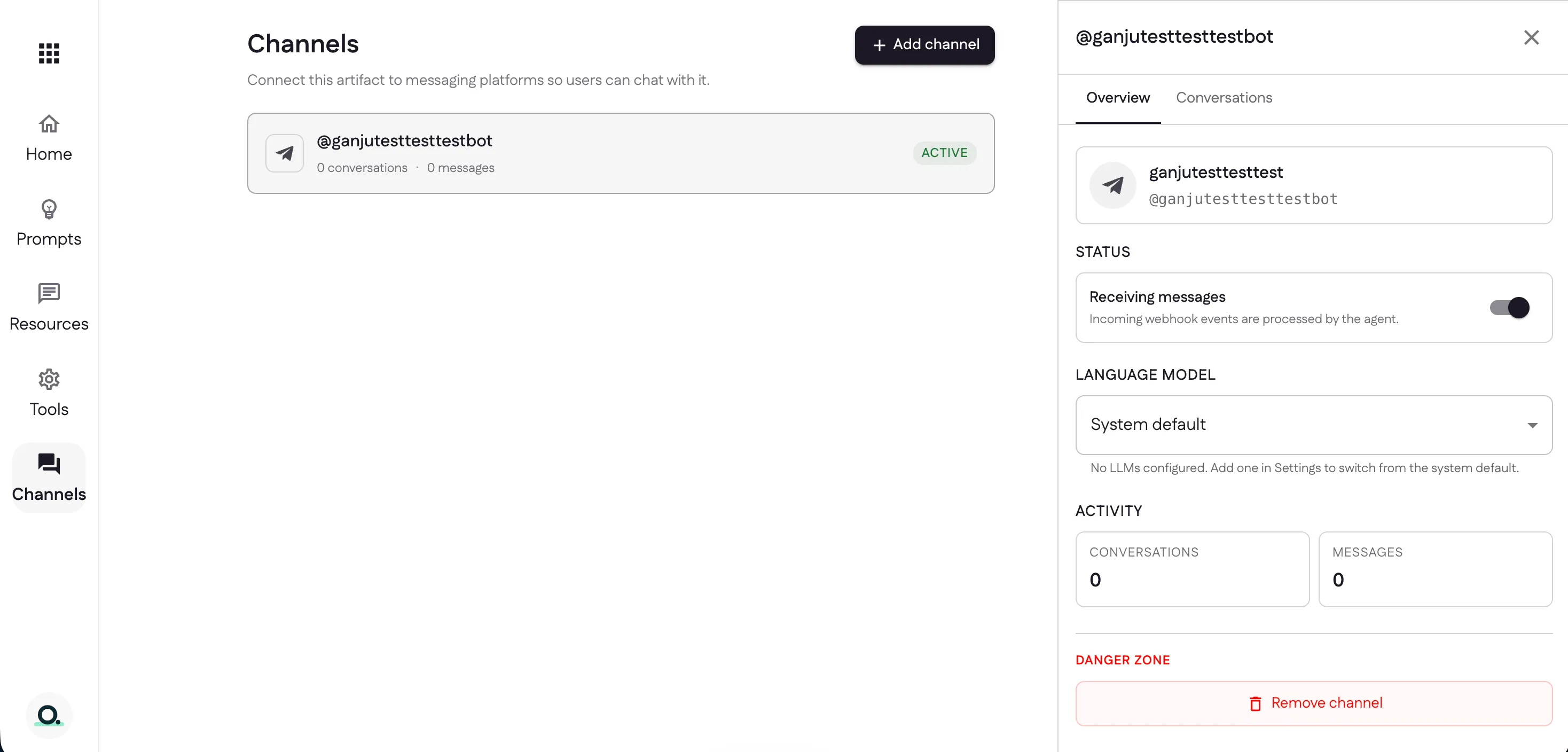
The channel goes Active. From its Overview you can toggle Receiving messages, switch the model, watch activity, or remove the channel.
Chat with your assistant
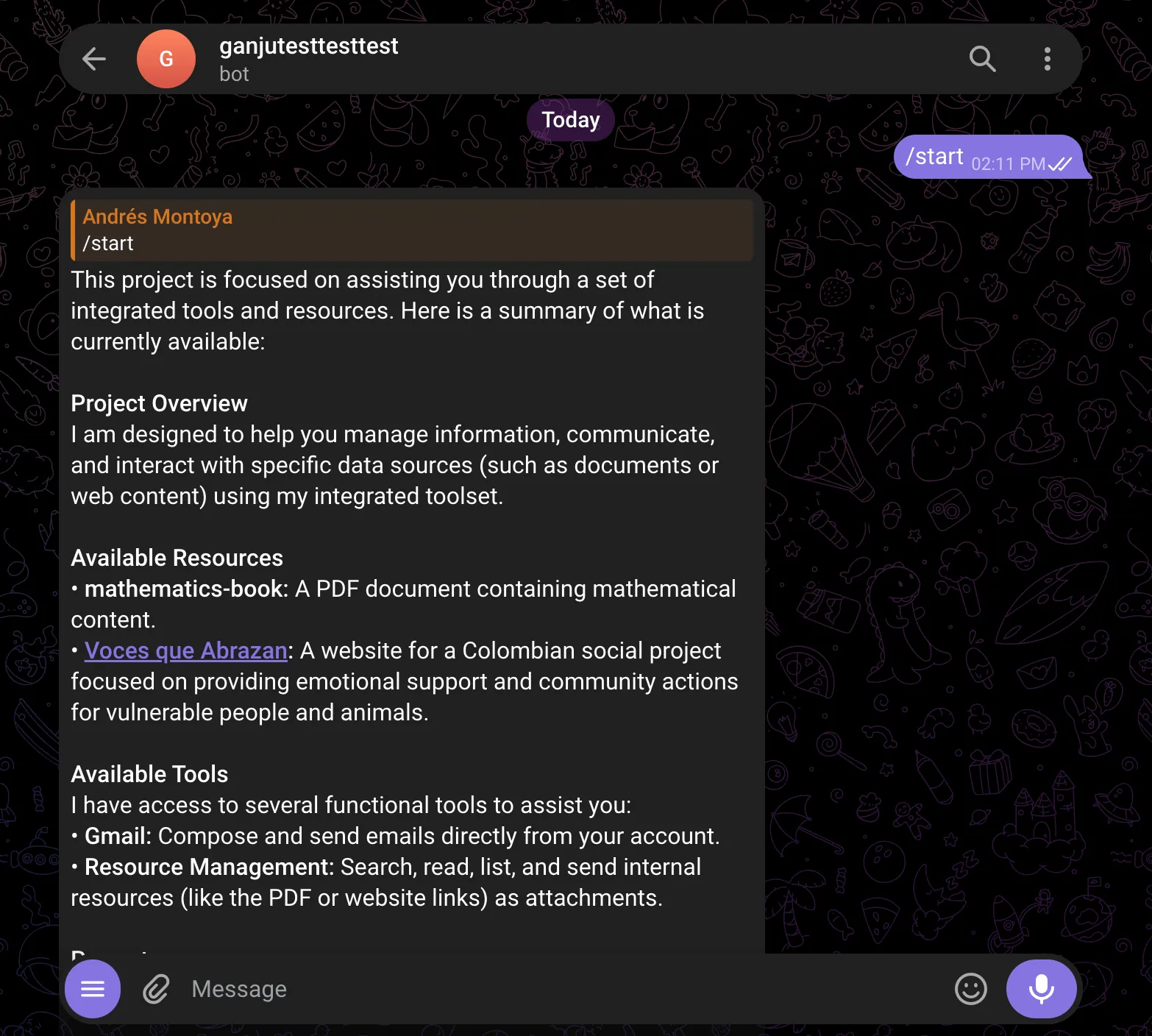
Now anyone can message your bot. Run the /start prompt and it introduces itself
with the resources and tools you set up earlier.
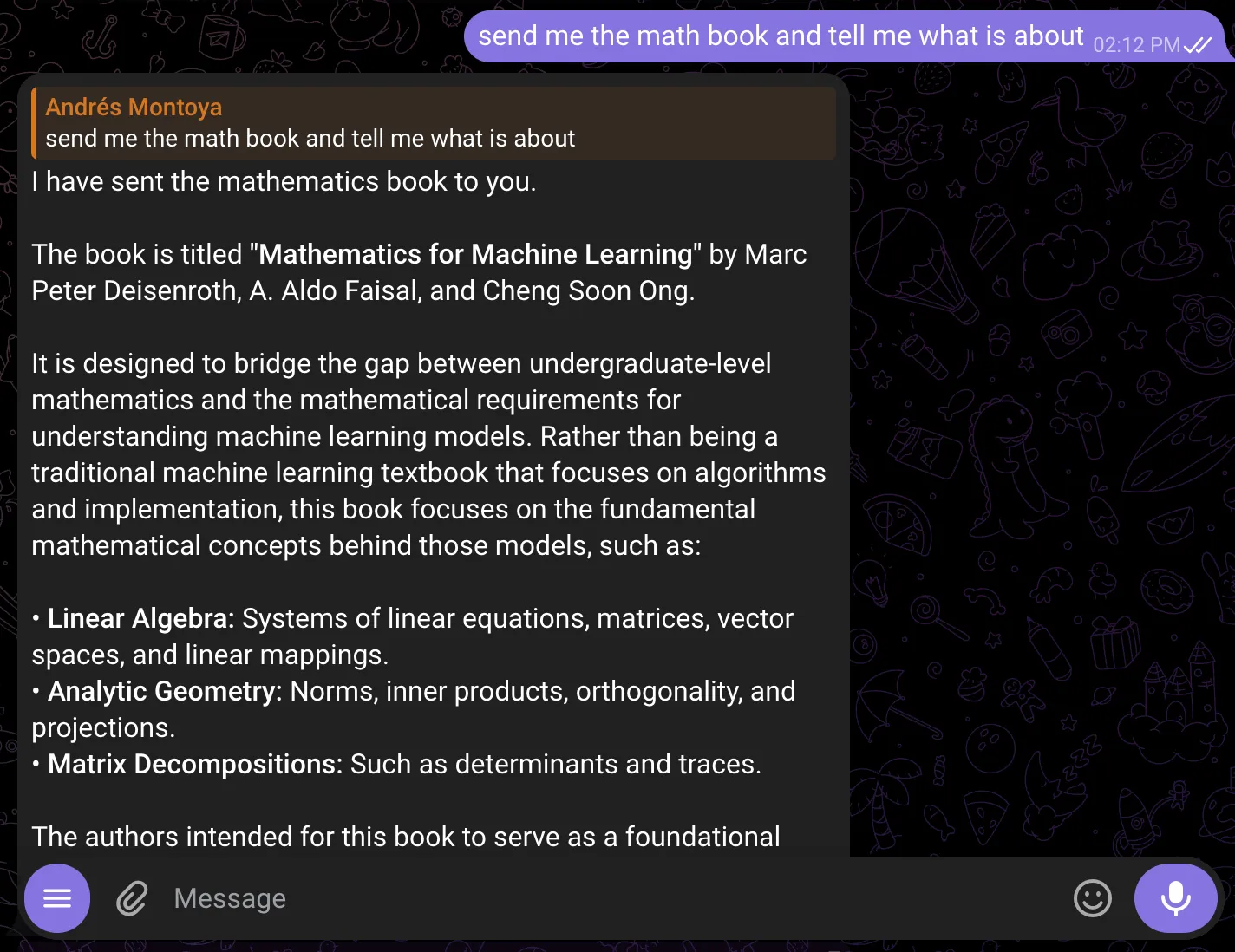
Ask it to do something real — here, “send me the math book and tell me what it’s about” — and it uses your tools and resources to answer and deliver the file.
Monitor conversations
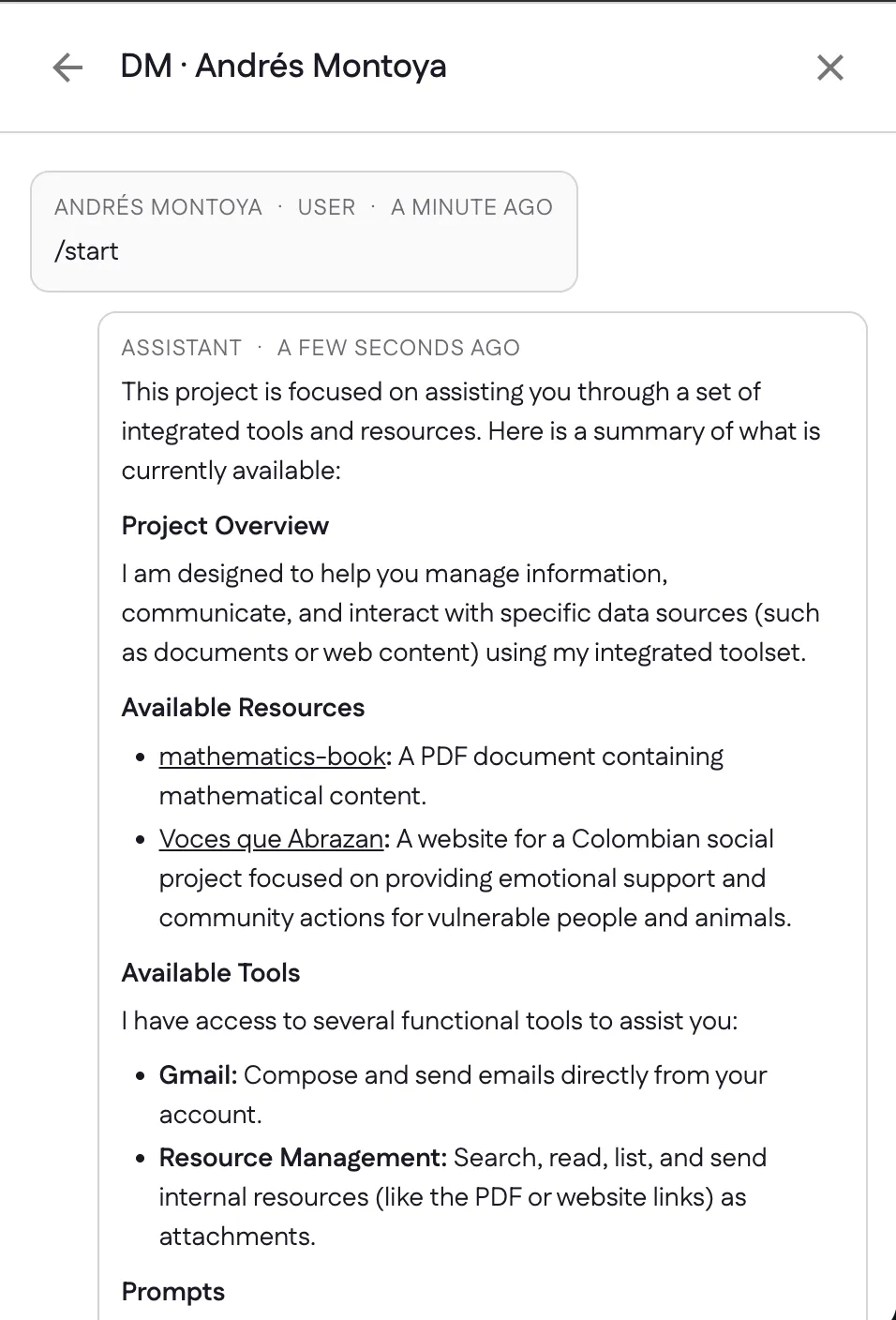
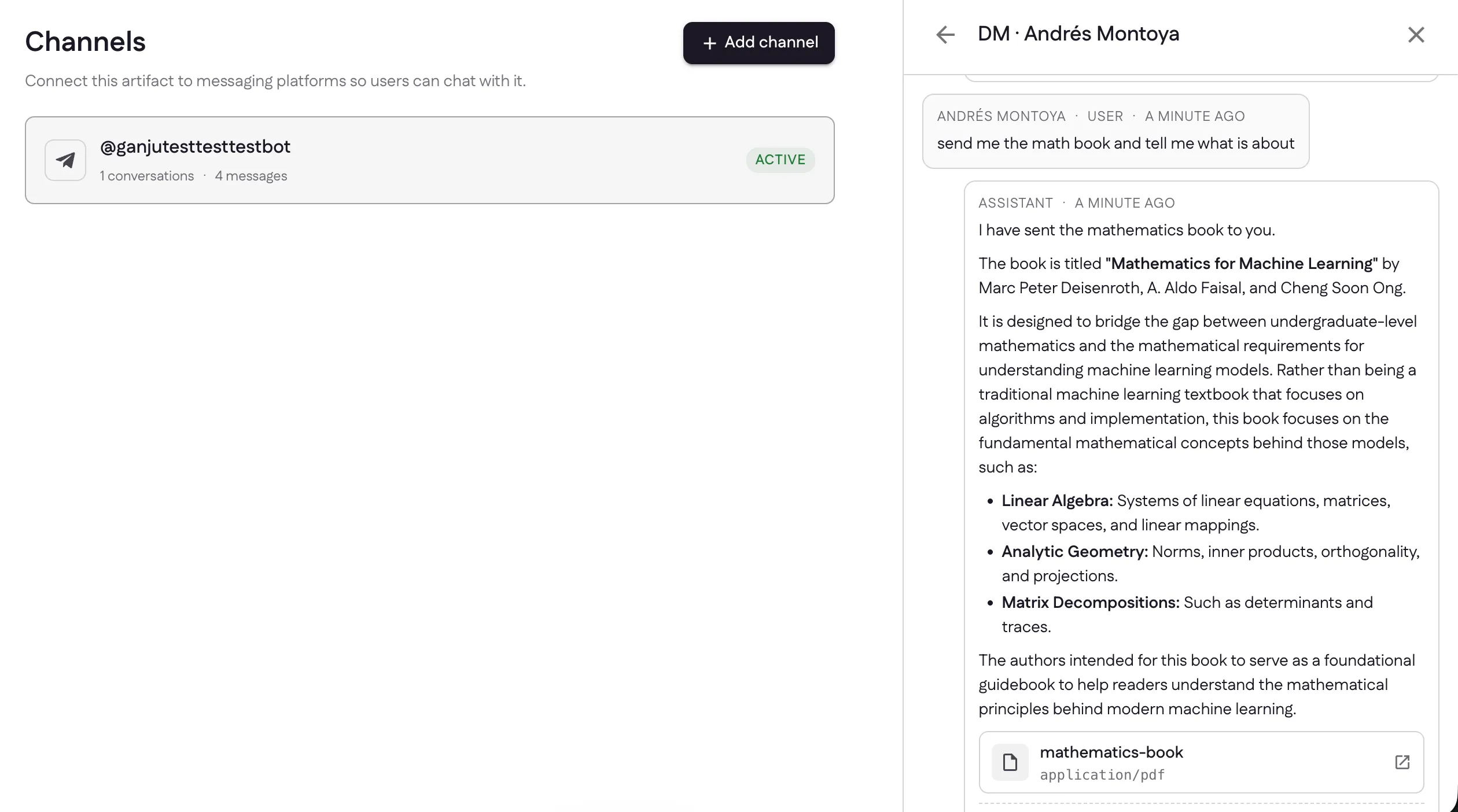
Back in the dashboard, each channel’s Conversations tab shows every exchange — so you can see exactly how people are using your assistant.
The channel card keeps a running count of conversations and messages, and each reply shows the resources it sent as attachments.
Next: manage it over time in settings.
Last updated