 Star
Star Documentation
Prompts
Build reusable, multi-turn prompt templates with typed variables — each becomes a slash command in your linked chat channels.
Prompts are reusable message templates your project exposes through its MCP
server. In any linked chat channel, each prompt becomes a slash command people
can run by name — so a common request turns into a one-word shortcut. A prompt can
be a single message or a full multi-turn exchange, and any {{variable}} you use
is filled in when the prompt runs.
Why use prompts
- Turn repeat work into one command. Capture a request you send again and
again once, then run it as
/command— no re-typing, no forgetting the details. - Consistent results every time. Everyone triggers the exact same wording and structure, so your AI answers the same way no matter who asks.
- Share expertise with your whole team. A well-crafted prompt written once is instantly available to every teammate in the channel — no prompt-engineering skill required to use it.
- Guide the model with typed inputs. Variables are validated by type and marked required, so callers can’t run a prompt with a missing or malformed value.
- Steer the conversation. Multi-turn User/Assistant templates set the tone and give the model examples to follow, producing sharper, more predictable replies.
- Edit without redeploying. Update a prompt in the dashboard and the new version is live in every linked channel immediately — nothing to ship.
Create a prompt
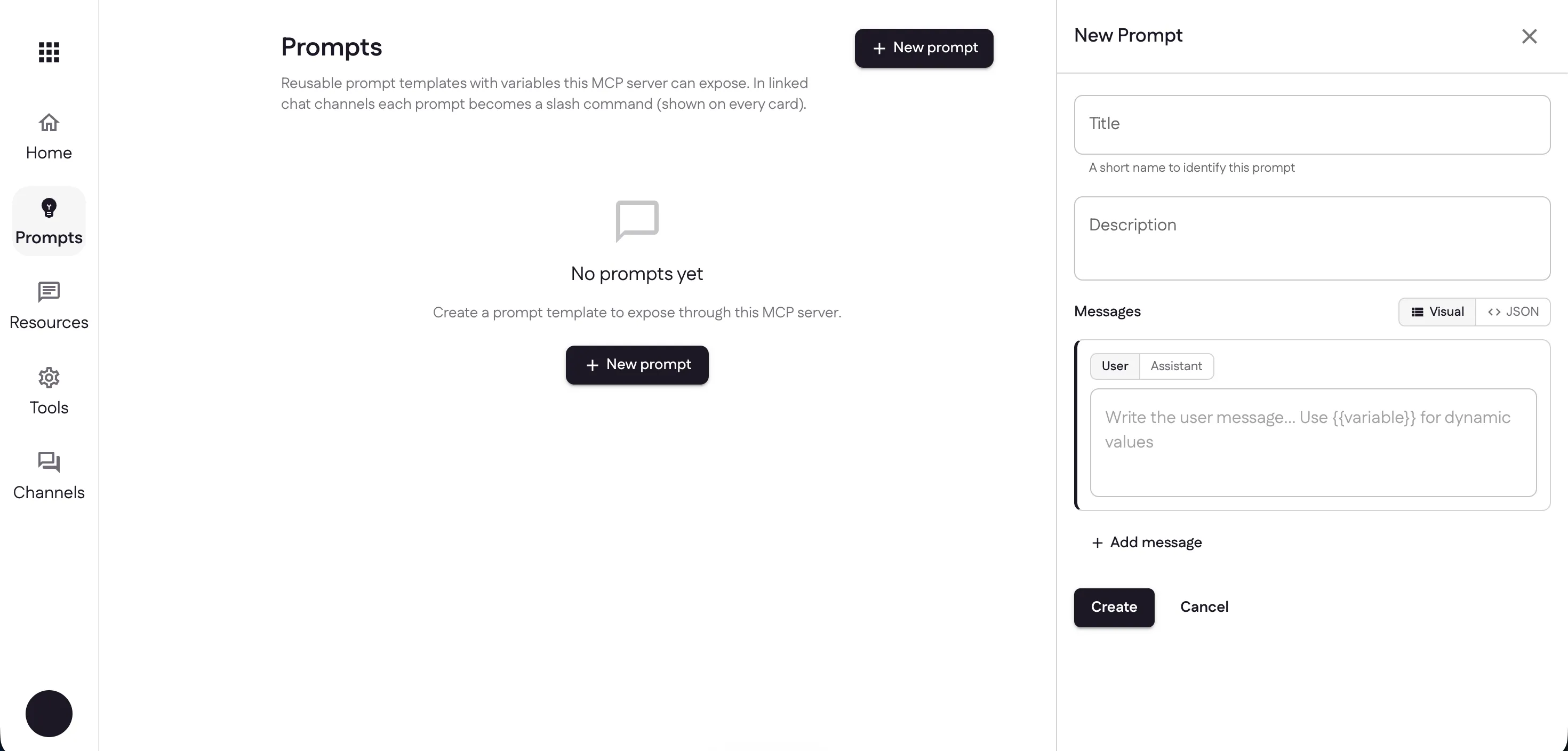
Open the Prompts page and select New prompt. A panel opens on the right with empty Title, Description, and Messages fields.
Name it and write a message
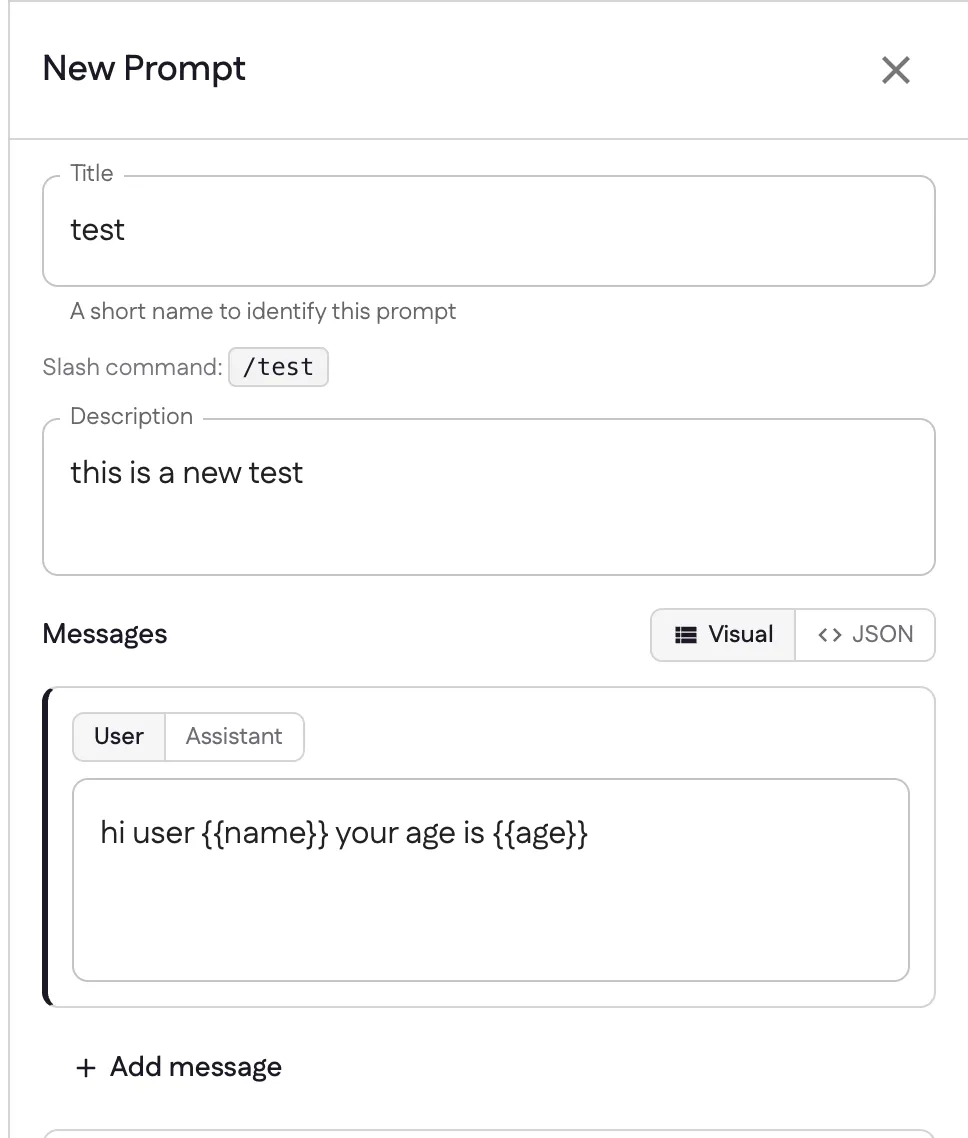
Give the prompt a title — Ganju turns it into the slash command shown just
below (here, test becomes /test). Add a short description so teammates know
what it does, then write your first message.
Drop {{variables}} anywhere you want a value supplied at run time. In this
example the user message is hi user {{name}} your age is {{age}}, so name and
age become inputs the caller provides.
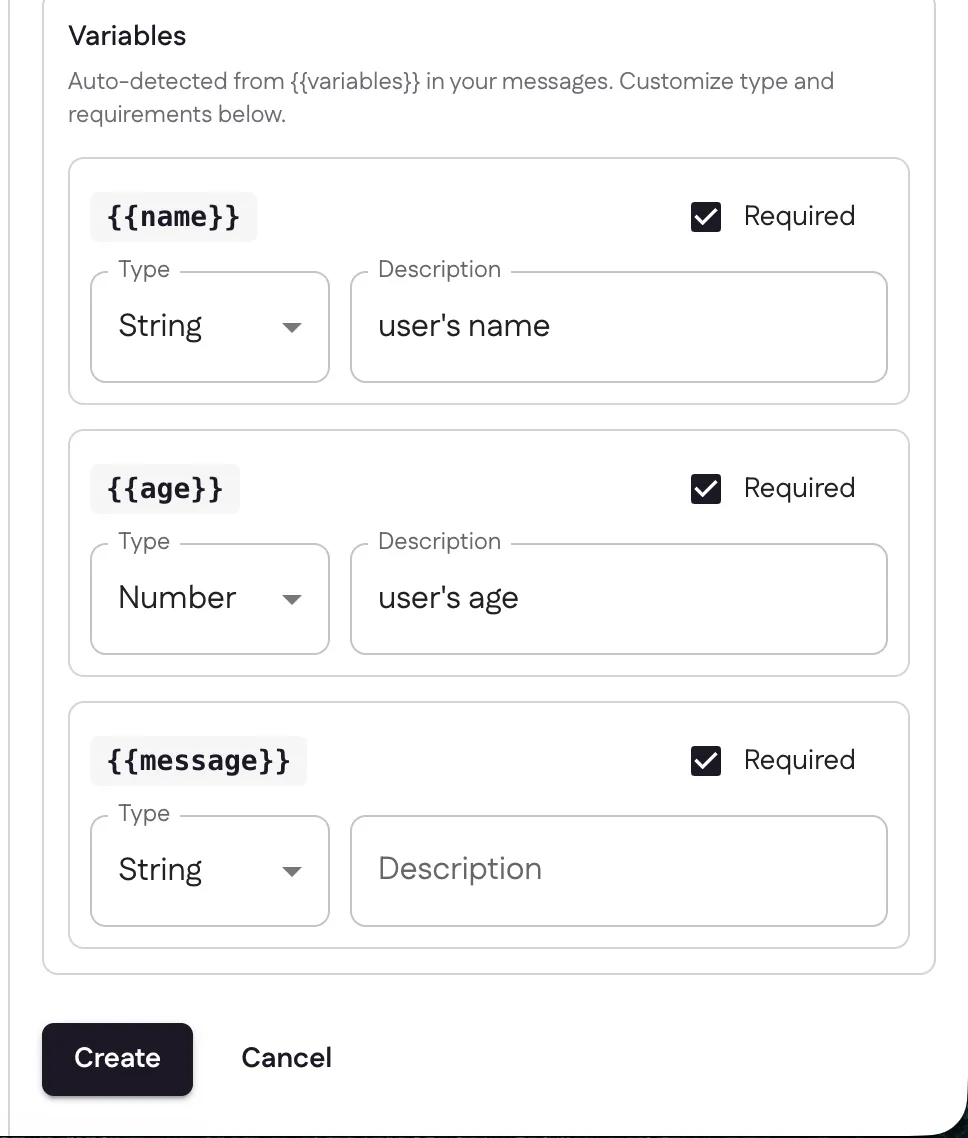
Configure the variables
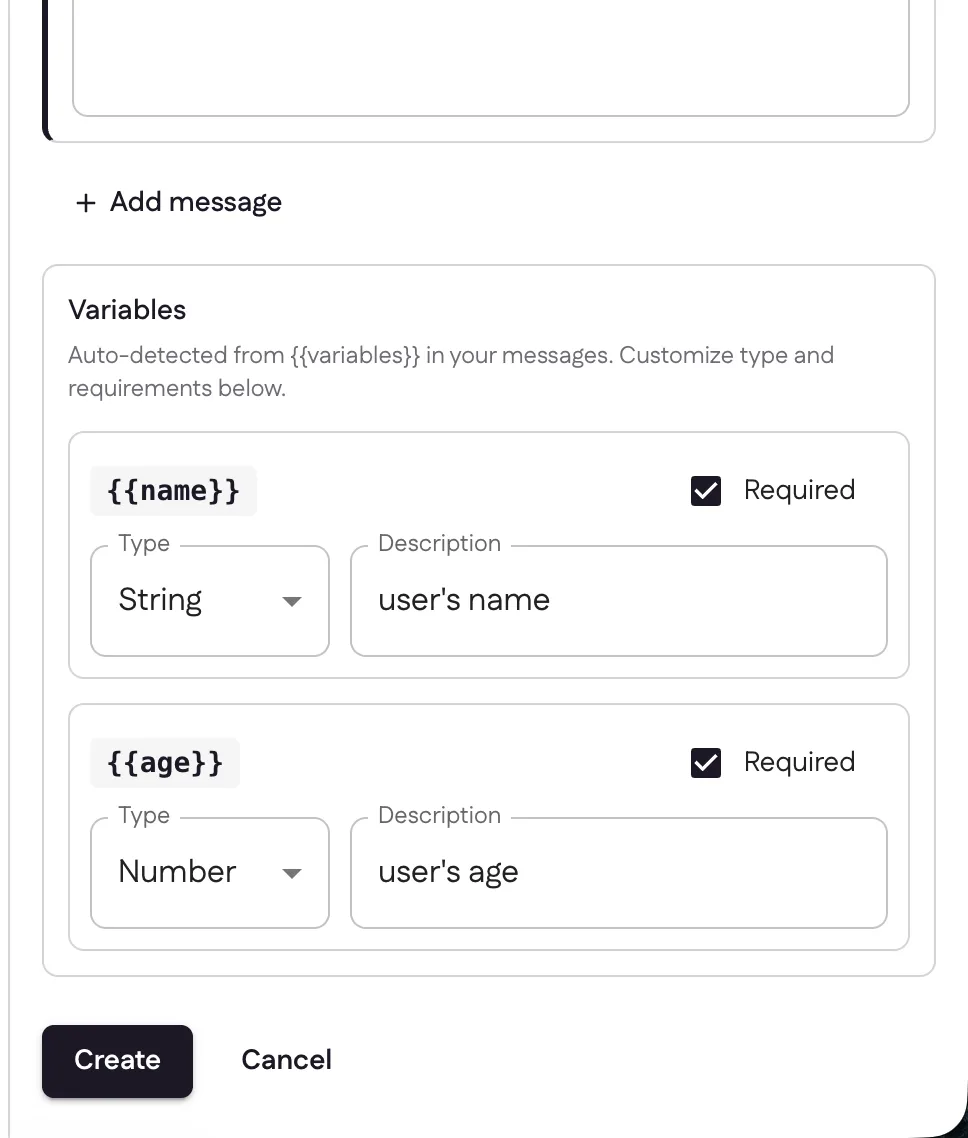
Ganju auto-detects every {{variable}} in your messages and lists them under
Variables. For each one you can:
- set a type — String, Number, and Boolean;
- add a short description to guide whoever runs the prompt;
- mark it required or optional.
Here {{name}} is a required String (“user’s name”) and {{age}} a required
Number (“user’s age”).
Add more messages
Real prompts are often a conversation, not a single line. Select Add message
to append another turn, and switch each message between User and Assistant
to shape the exchange. This second message is an Assistant turn,
this is a new {{message}}.
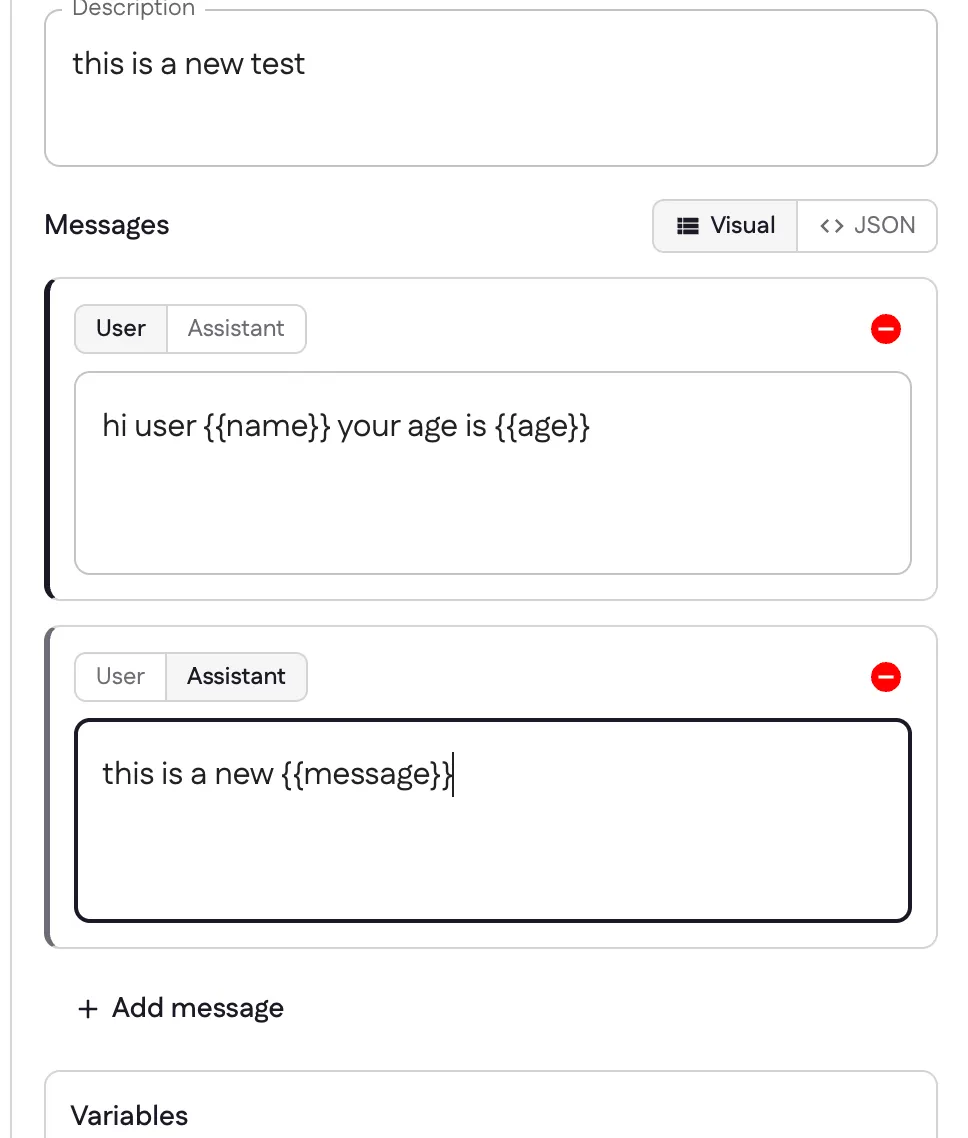
New variables you introduce are picked up automatically — {{message}} now
appears alongside {{name}} and {{age}} in the Variables list, ready to type
and describe.
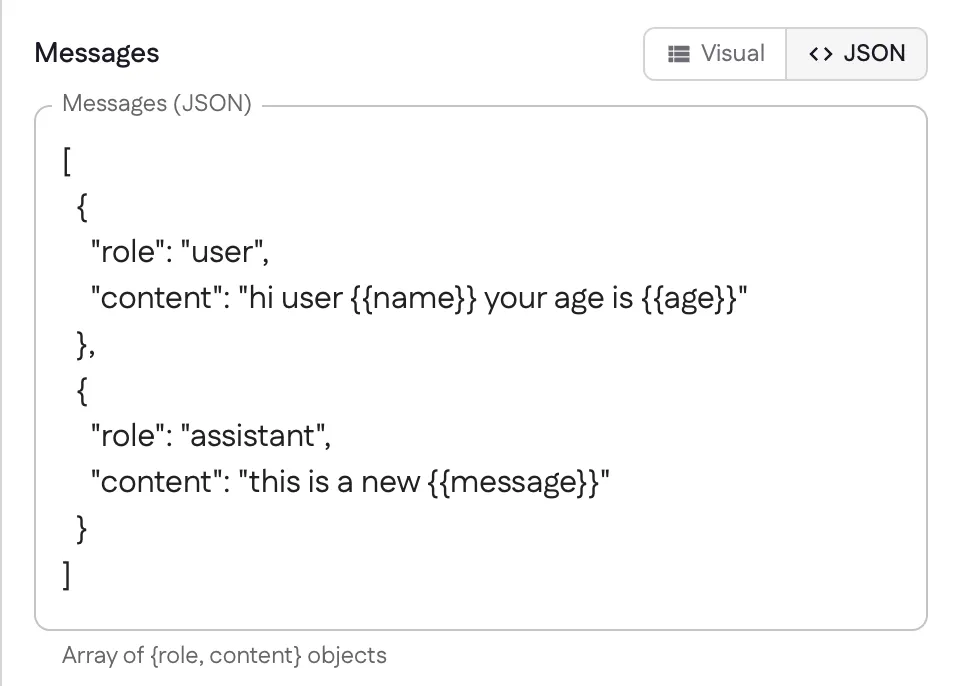
Edit as JSON
Prefer to work with raw structure? Toggle Visual / JSON at any time to edit
the messages directly as an array of { role, content } objects. It’s the fastest
way to paste in a template you already have, and it stays in sync with the visual
editor.
Save and run it
Select Create and the prompt is saved as a card showing its slash command,
description, and messages. From any linked channel, type the command (like
/test), fill in the required variables, and Ganju runs the template — variables
substituted — as if you’d written the whole thing by hand.
Next: give your prompts something to work with — add resources.
Last updated