 Star
Star Documentation
Discord
Connect a Discord application — reset the bot token, enable the message intents, paste the token, application ID, and public key, then set the interactions endpoint.
Discord connects through an application you create in the Discord Developer Portal. You’ll grab three values — the bot token, Application ID, and Public key — enable the message intents, and invite the bot. Free-form messages reach Ganju over Discord’s Gateway automatically; slash commands use the Interactions Endpoint URL you set at the end.
1. Create an application and bot
- Go to the Discord Developer Portal and select New Application. Name it and accept the terms.
- On General Information, copy the Application ID and the Public key.
- Open the Bot tab and select Reset Token, then copy the bot token (treat it like a password).
2. Enable intents and invite the bot
- Under Bot → Privileged Gateway Intents, enable Message Content Intent and Server Members Intent. Without Message Content, the bot can only read DMs or messages where it’s @mentioned.
- Invite the bot to your server with the
botandapplications.commandsscopes, and the Send Messages, Read Message History, and Attach Files permissions.
3. Connect it in Ganju
In Channels → Add channel, pick Discord, choose a language model, and fill in:
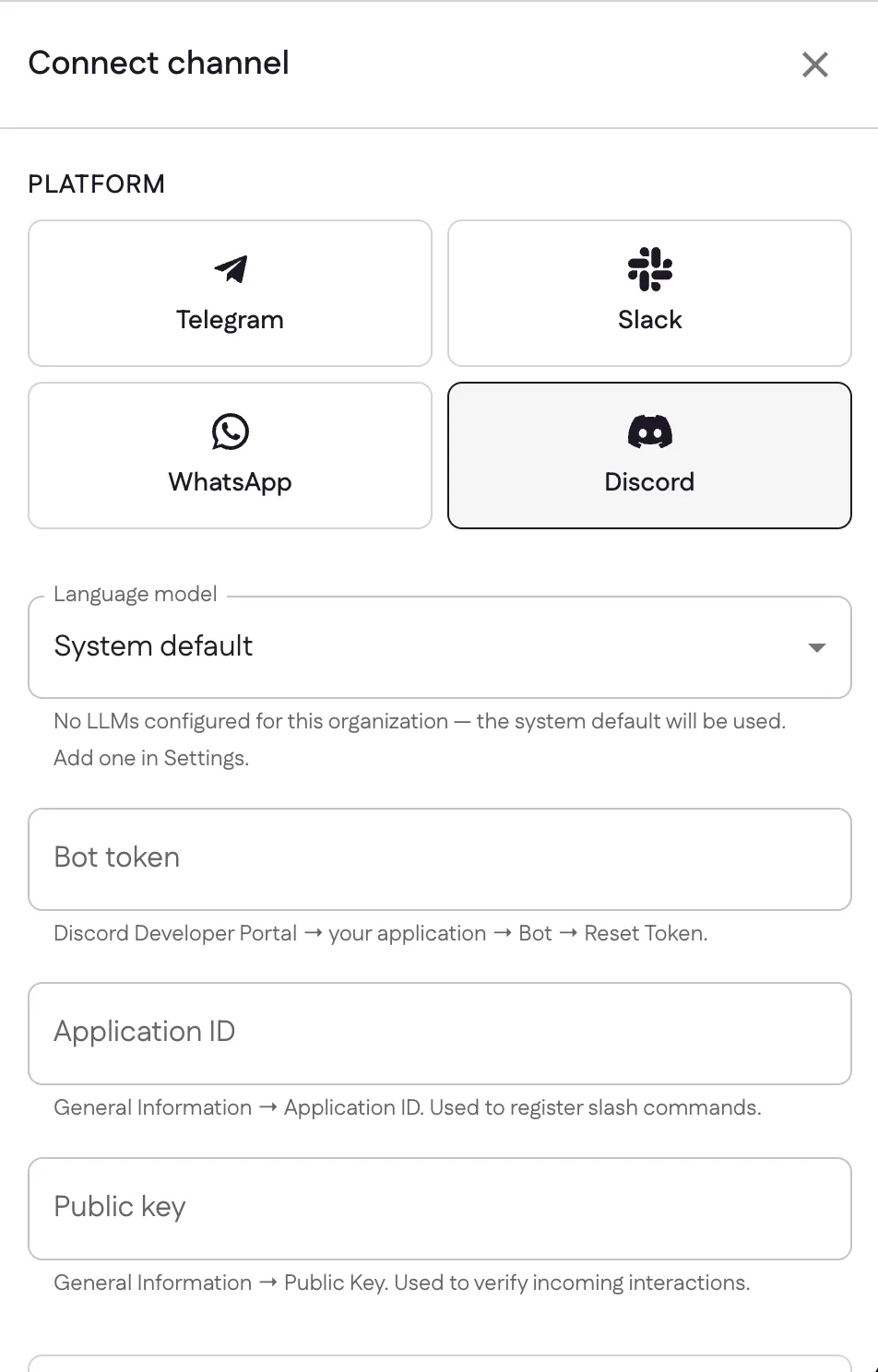
- Bot token — from the Bot tab (Reset Token).
- Application ID — from General Information; used to register slash commands.
- Public key — from General Information; used to verify incoming interactions.
Select Connect. Ganju opens the Gateway connection right away, so the bot can already reply to messages.
4. Set the interactions endpoint
To enable native slash commands, Ganju gives you an Interactions Endpoint URL after connecting. Paste it into your application’s General Information → Interactions Endpoint URL and save — Discord verifies it against your public key.
Sources: Discord Bots & Companion Apps (Discord docs), Application setup (discord.js)
Last updated