 Star
Star Documentation
Organizations & projects
How Ganju is structured — an organization holds your team, billing, and plan; each project inside it is a self-contained workspace for one assistant.
Ganju has two levels. Your organization represents your team or company — it’s where members, billing, and your plan live. Inside it, each project is a self-contained workspace for one assistant, with its own prompts, resources, tools, and channels, and its own MCP URL. One organization can hold many projects.
Why two levels
- One workspace per assistant. Give each client, product, or use case its own project — their prompts, resources, and tools stay completely separate.
- Shared team and billing. Members and the plan sit at the organization level, so everything inside is covered by one subscription and one member list.
- Clean separation, one account. Run a Free organization for personal projects and a Pro one for your company, side by side, from the same login.
Switch between them
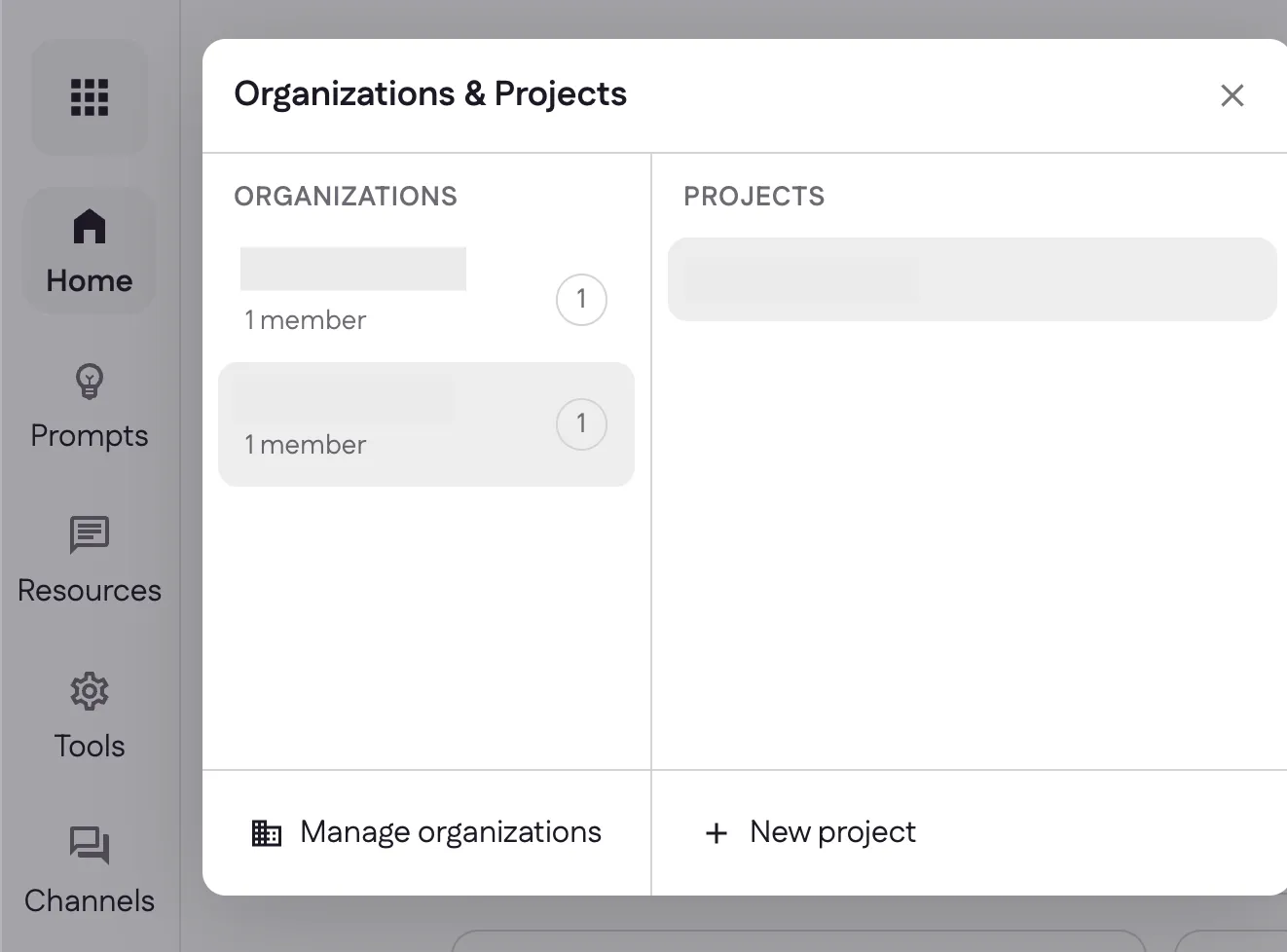
The Organizations & Projects switcher — the grid icon at the top of the left sidebar — is how you move around. Pick an organization on the left to see its projects on the right, then open one. From here you can also Manage organizations or start a New project.
Create a project
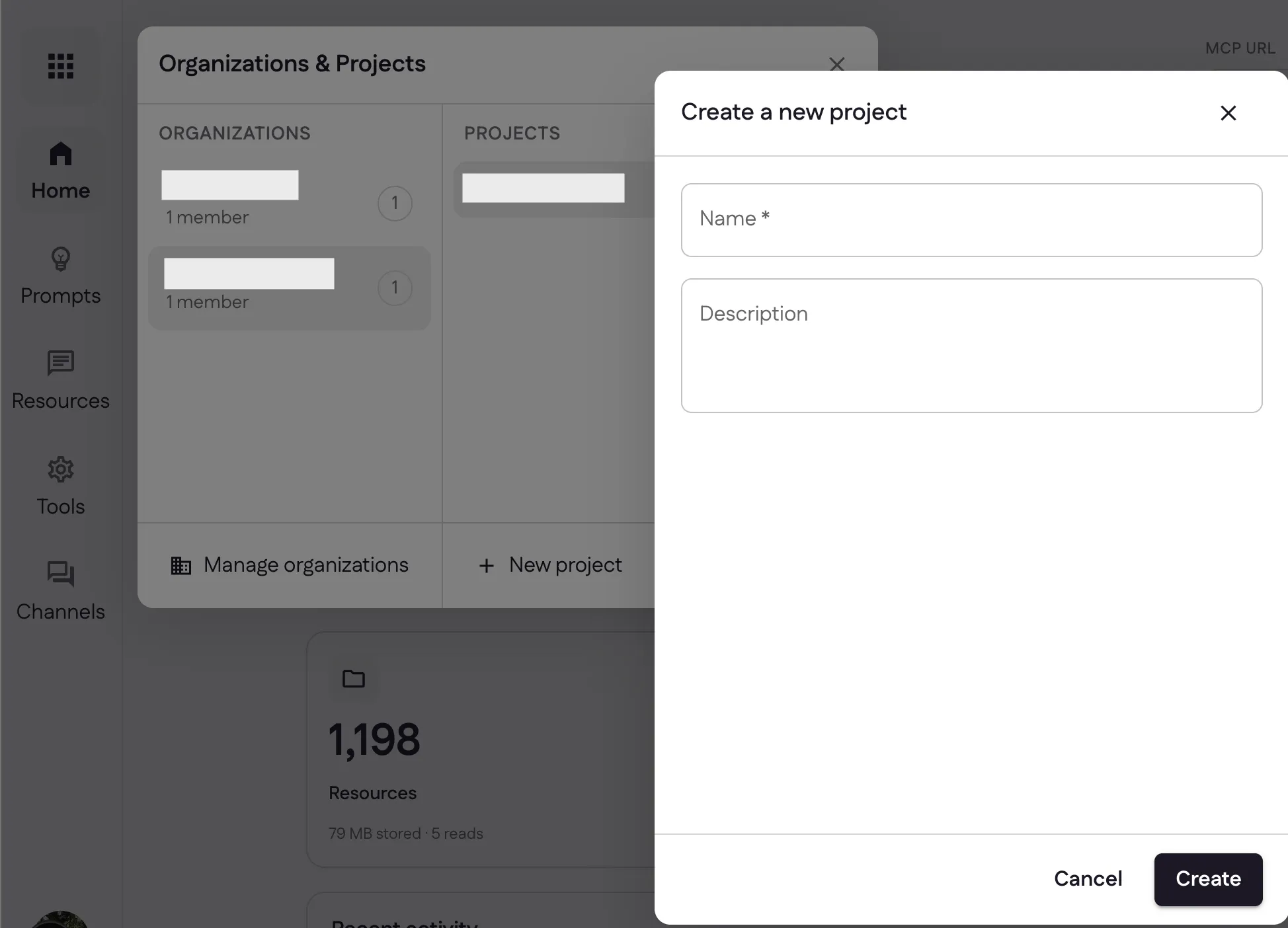
Select New project in the switcher. Give it a name and an optional description, then select Create — you’ll land on the new project’s Home, ready to add prompts, resources, and tools.
Manage organizations
Manage organizations opens the Organizations page, listing every organization you belong to. Each card shows its role and plan (Owner, Free or Pro), its project and member counts, and when it was created — with quick Invite and Settings actions. Select New organization to spin up another one (for a different team or company).
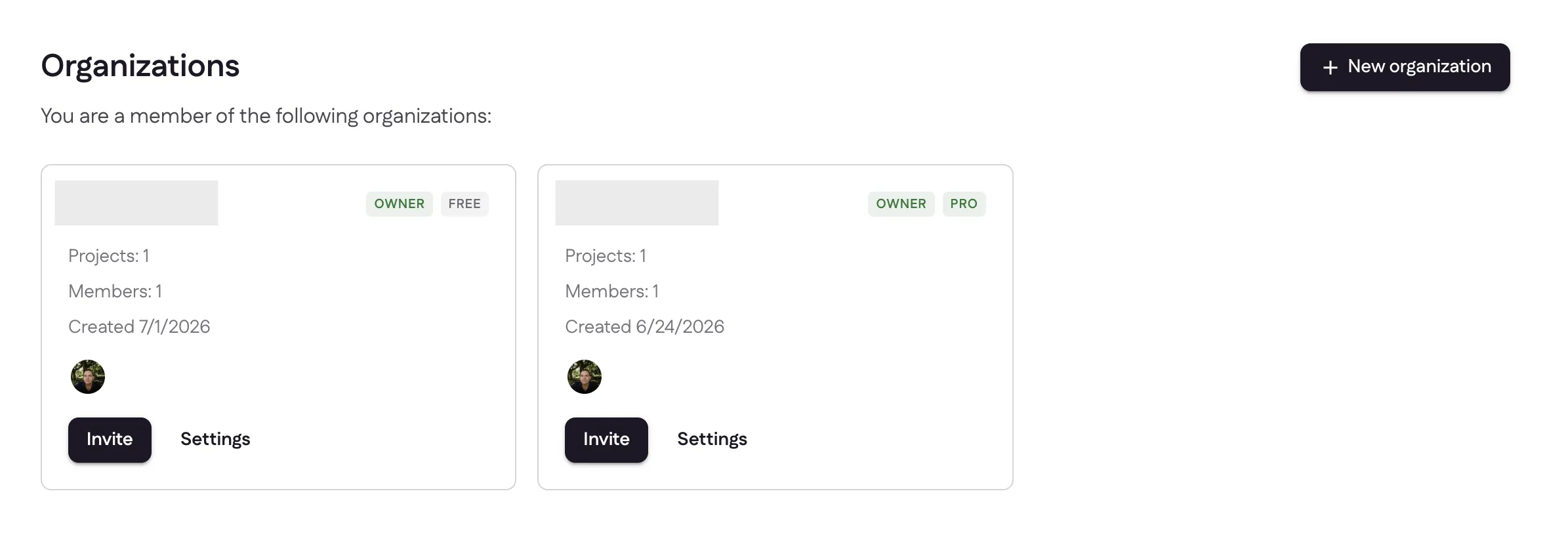
Each organization has its own plan and billing — dig into those, along with members and models, in Settings.
Next: shape how your assistant behaves with prompts.
Last updated